
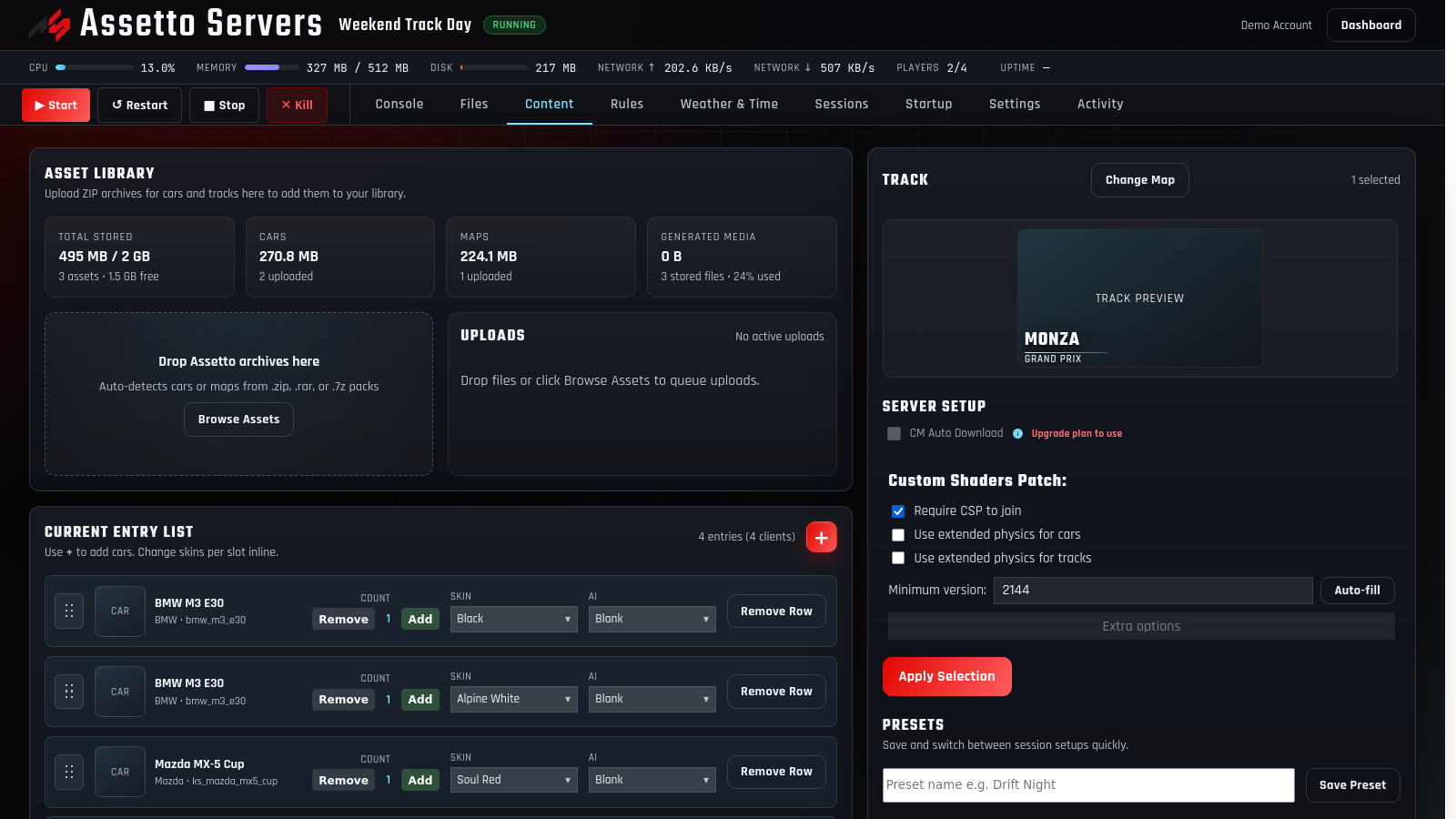
The quick answer
The easiest way to create an Assetto Corsa server
Choose a hosting plan and nearby location, open the new server from your dashboard, select a track and cars in the Content tab, configure the session, then press Start. Once the server is online, use the panel’s Content Manager join link to connect and invite other players.
With hosted service, you do not need to leave a gaming PC running or configure port forwarding on your home router.
Before you start
You only need a few things before building the lobby. Having them ready makes the rest of the setup much faster.
An Assetto Servers accountCreate an account or sign in before selecting a plan.
Your preferred server regionChoose the location closest to most of your drivers.
A lobby namePick a clear name players will recognize in the server list.
Optional custom contentKeep your car and track archives ready if the lobby will use mods.
Start with default content for the first launch. Once the server connects correctly, add custom cars and tracks one group at a time.
Choose a plan and server location
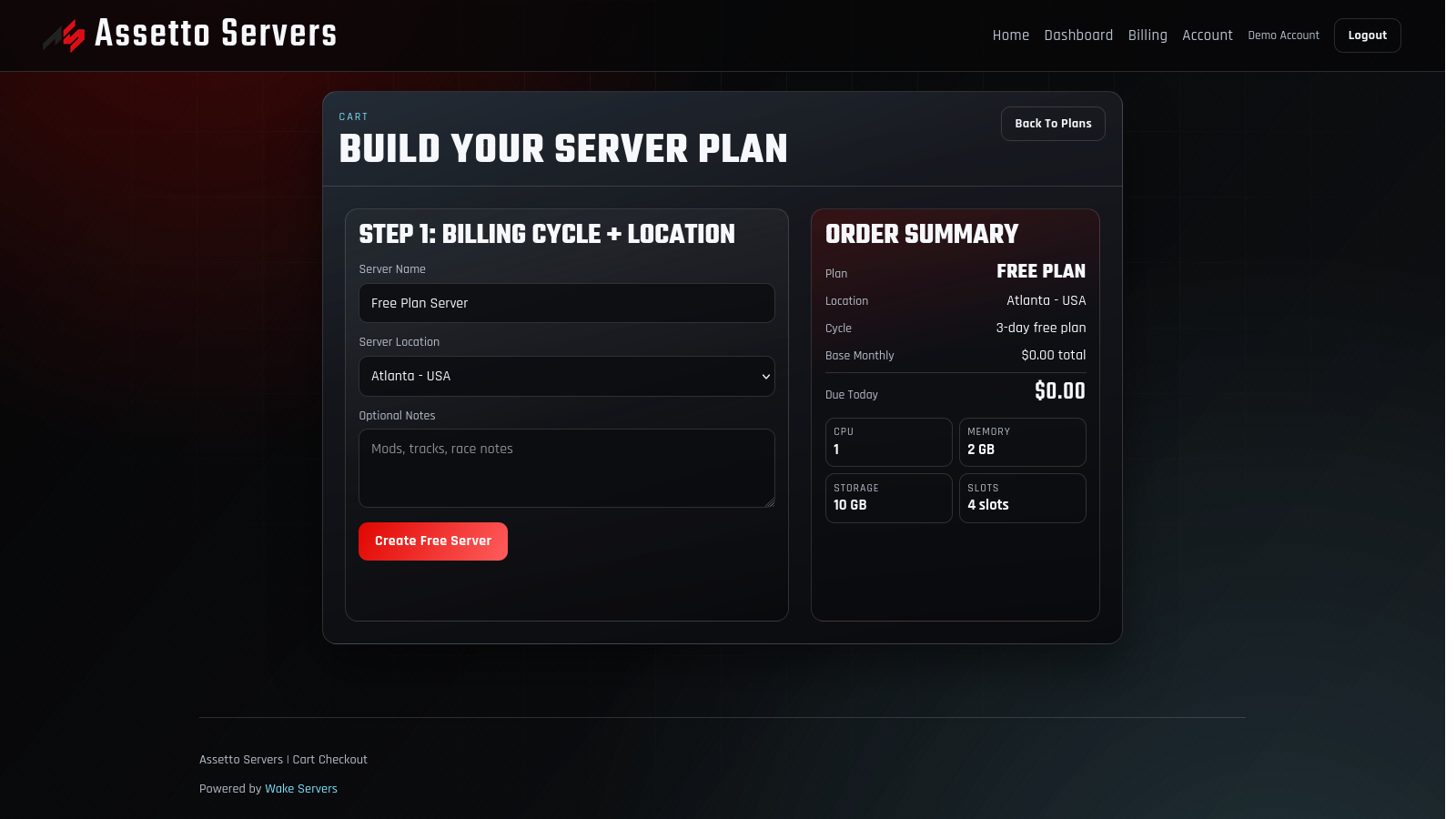
Open the hosting plans and select the resources that fit your lobby. For a first test, the Free Plan provides a 3-day server with four player slots, 1 vCPU, 2 GB RAM, and 2 GB of asset storage.
- 1Select a plan.
Use the Free Plan for a small test or choose a larger plan for leagues, events, and bigger mod collections.
- 2Choose the billing cycle.
Paid plans show the available billing options before checkout.
- 3Name the server.
Use a short name that describes the community, event, or driving style.
- 4Select a location.
Pick the region that gives the majority of players the shortest route and lowest latency.
Open the server from your dashboard
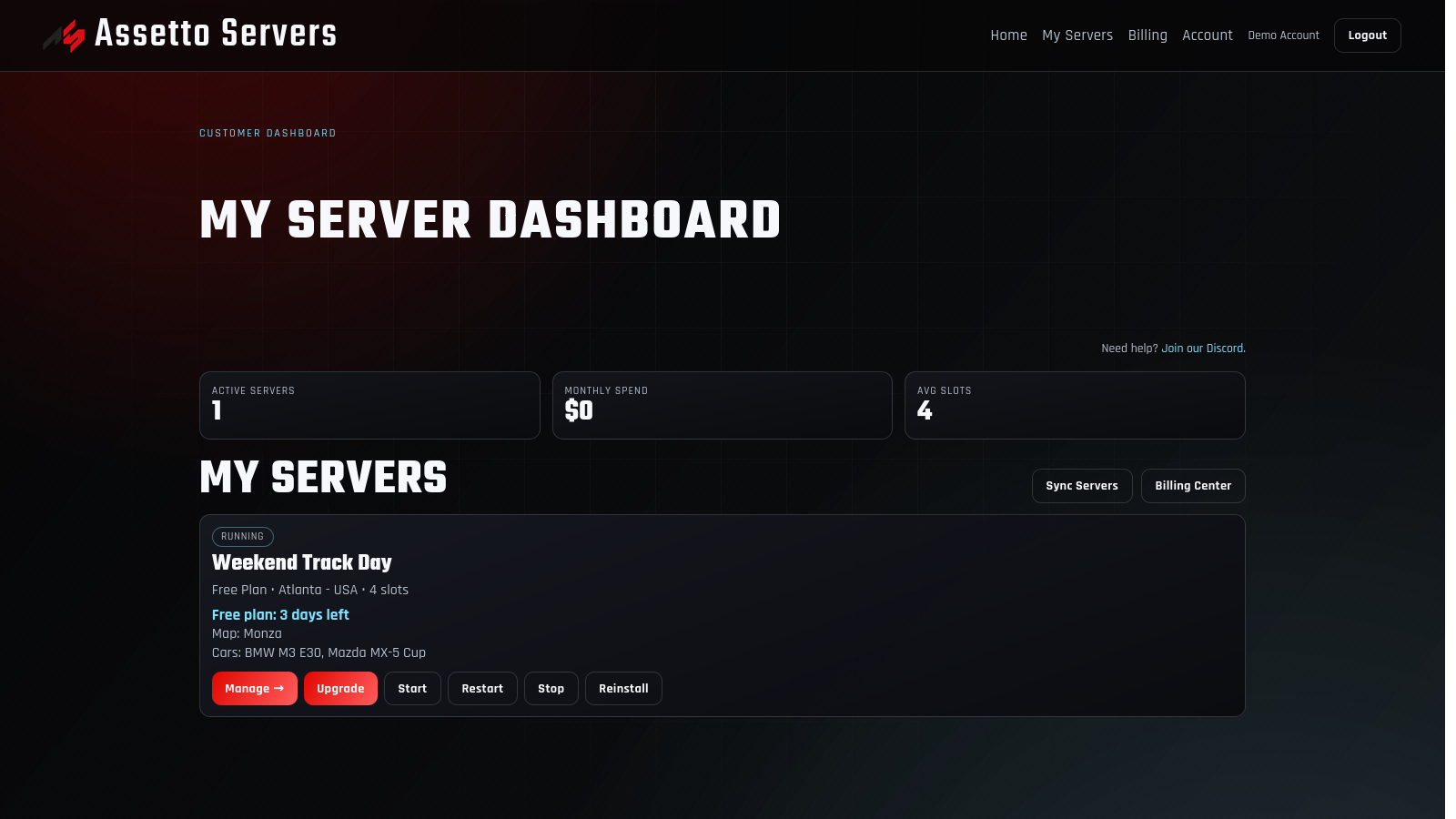
After the server is created, it appears under My Servers in your customer dashboard. Provisioning may take a short time while the game server files and panel connection are prepared.
- Wait until the server status changes from provisioning to ready or online.
- Open the server card to enter the Assetto Servers control panel.
- Check the resource bar for CPU, memory, disk, player count, and current uptime.
Add cars and tracks
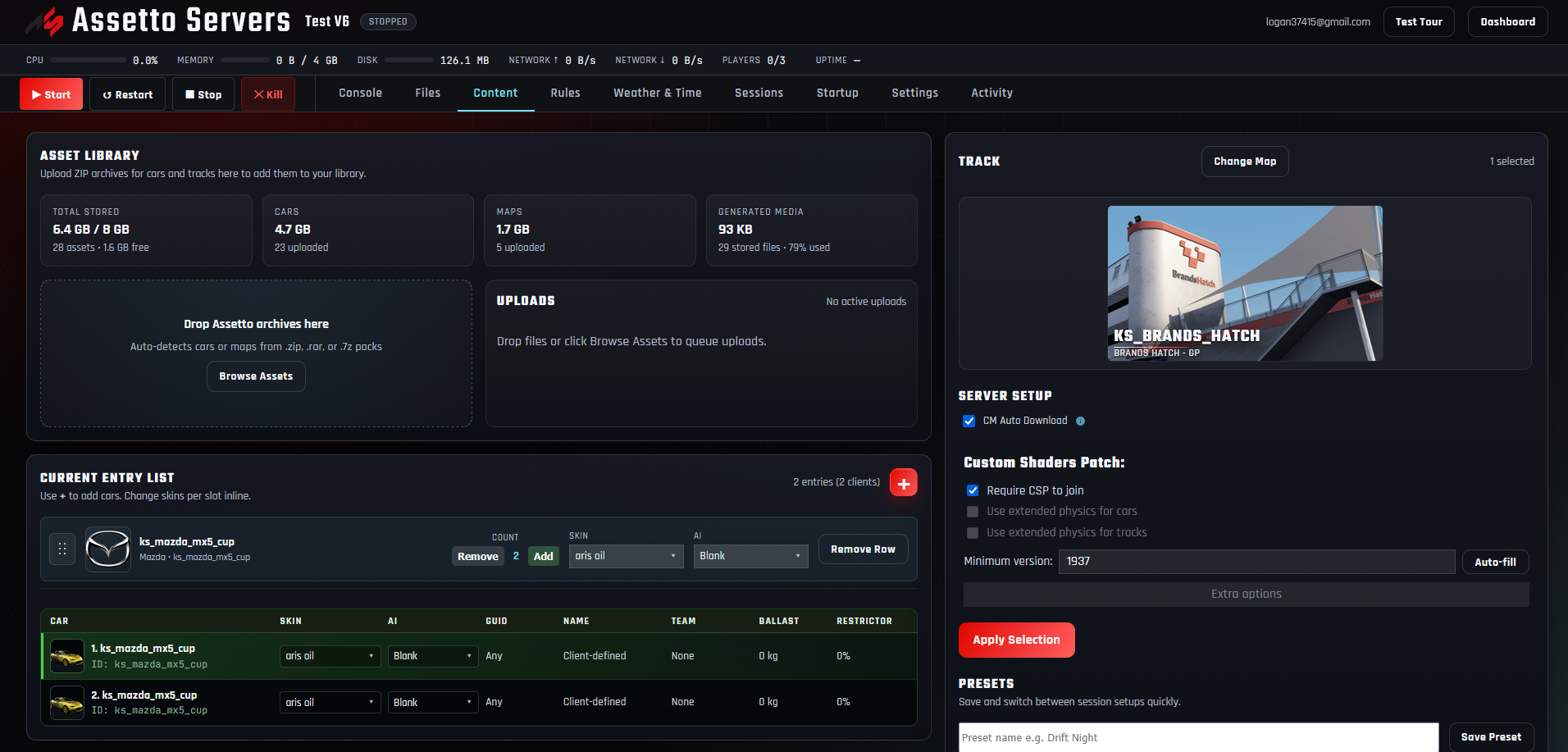
Open the Content tab. The Asset Library accepts supported car and track archives, organizes them for reuse, and lets you build the server entry list without manually editing folder paths. Follow the detailed walkthroughs to add cars to an Assetto Corsa server and add tracks and choose their layouts. For a cruising layout with an AI lane, continue with the AI traffic server setup guide.
- 1Upload the content archives.
Drop your packaged cars and tracks into the Asset Library upload area.
- 2Choose the track and layout.
Select the exact layout the server should load.
- 3Add cars to the entry list.
Set the available models, number of entries, and skins where needed.
- 4Apply the selection.
Save the content configuration before moving to sessions and rules.
Every player needs the same car and track files used by the server. Different versions are a common cause of Assetto Corsa checksum failures.
Once the lobby is stable, explore the Assetto Corsa server plugin suite for timing and drift scoring, use the Timing Stage Builder to capture a route, and connect the Assetto Corsa Discord bot when you want status, join links, and leaderboards in your community.
Configure the lobby
The panel separates the most common configuration into focused tabs, so each part of the event can be reviewed before launch.
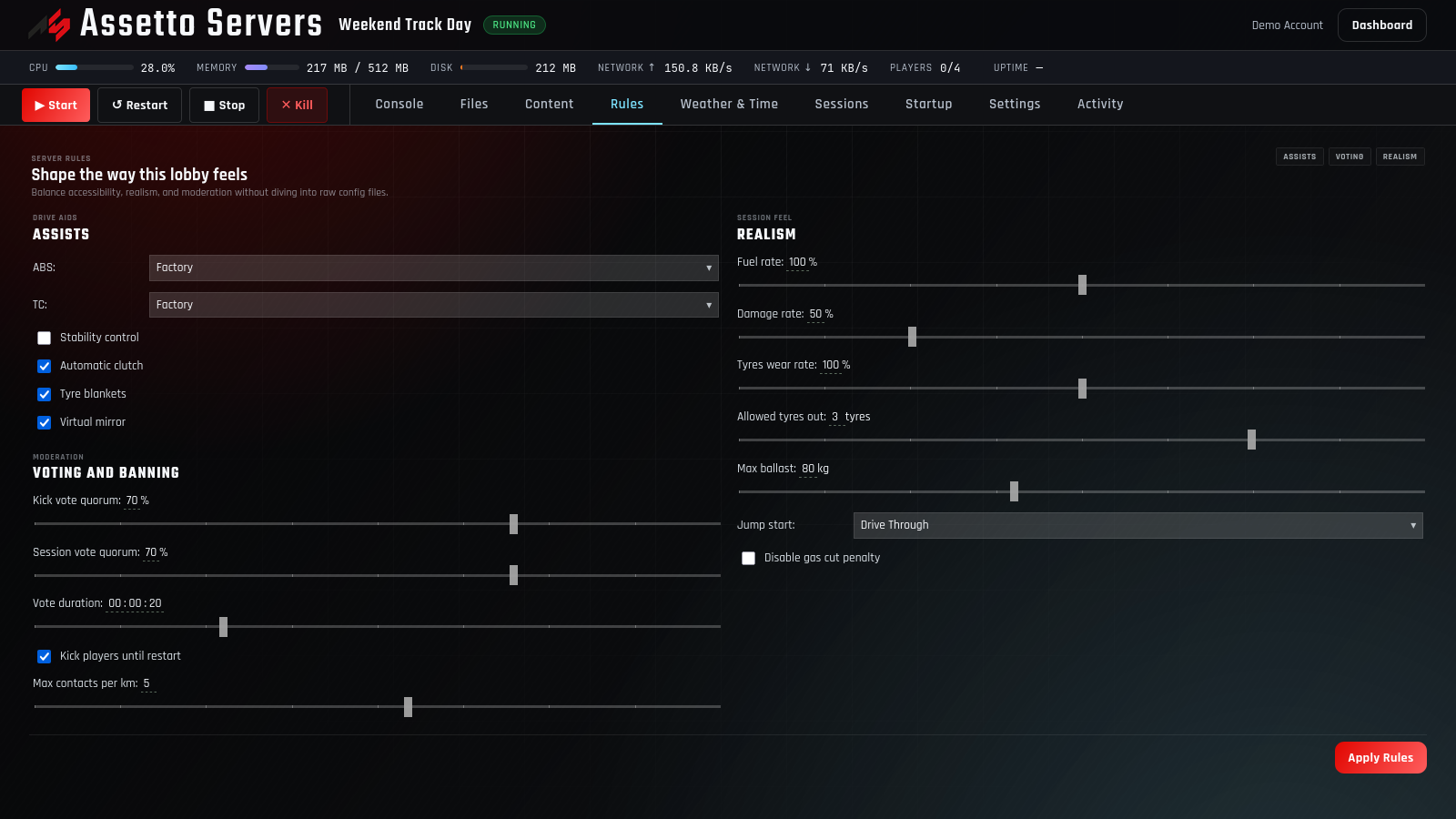
Configure server rules for ABS, traction control, damage, tyre wear, voting, and penalties.
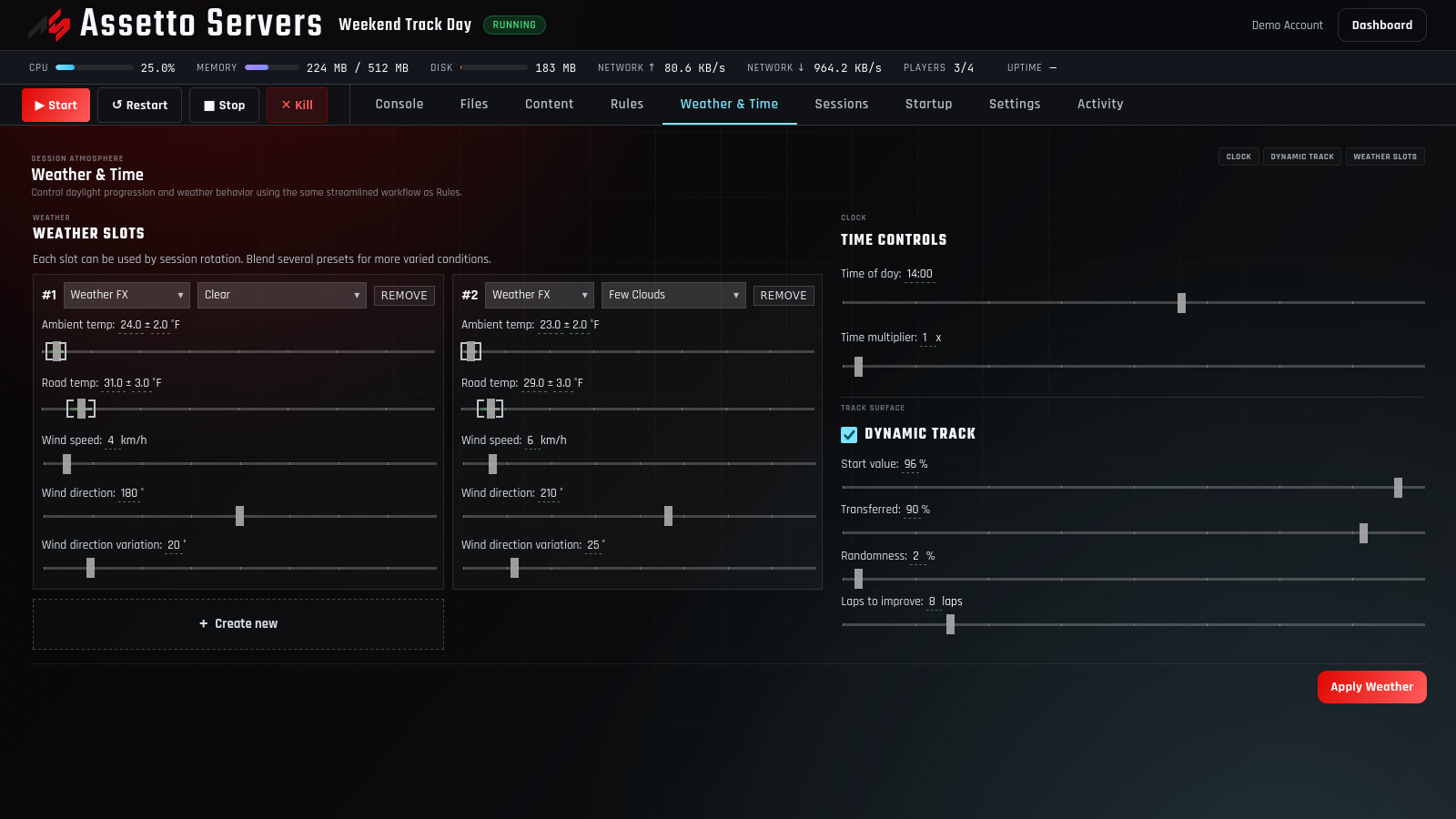
Configure weather and time, temperature, wind, and dynamic-track behavior.
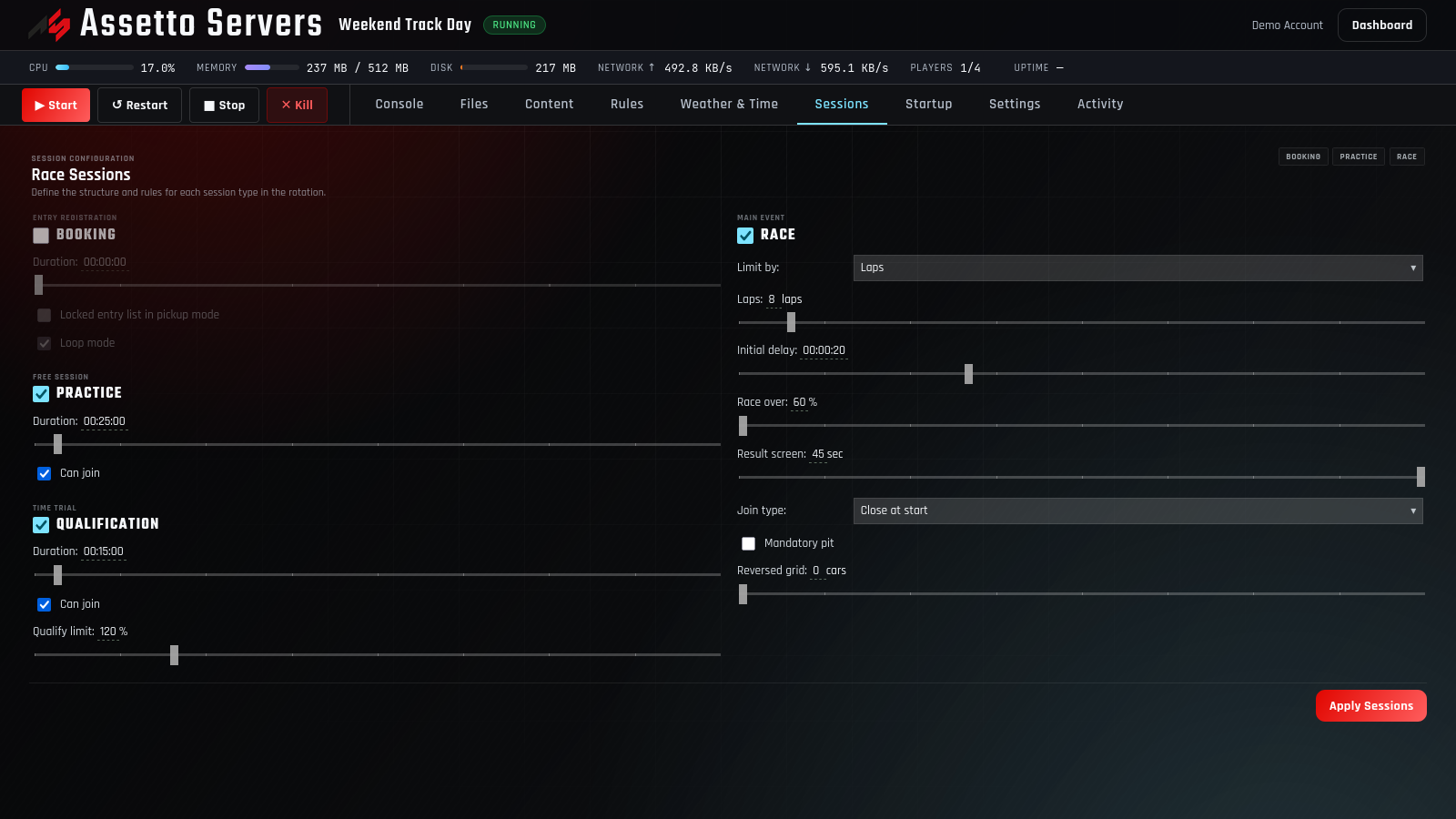
Configure practice, qualifying, and race sessions, then set their duration and join rules.
For a quick test, start with one practice session and open joining. Add qualifying, race rules, weather rotation, and stricter realism after the base server works.
Start the server and connect
Return to the top of the panel and press Start. Watch the console and status badge while Assetto Corsa loads the selected content. When the status is online, the session details should show the active map, cars, weather, and session type.
- 1Press Start.
Allow the server to finish booting before changing settings or restarting.
- 2Confirm the session details.
Check that the correct map, cars, weather, and session are loaded.
- 3Use Join in CM.
Open the session through Content Manager or copy the join link to share with players.
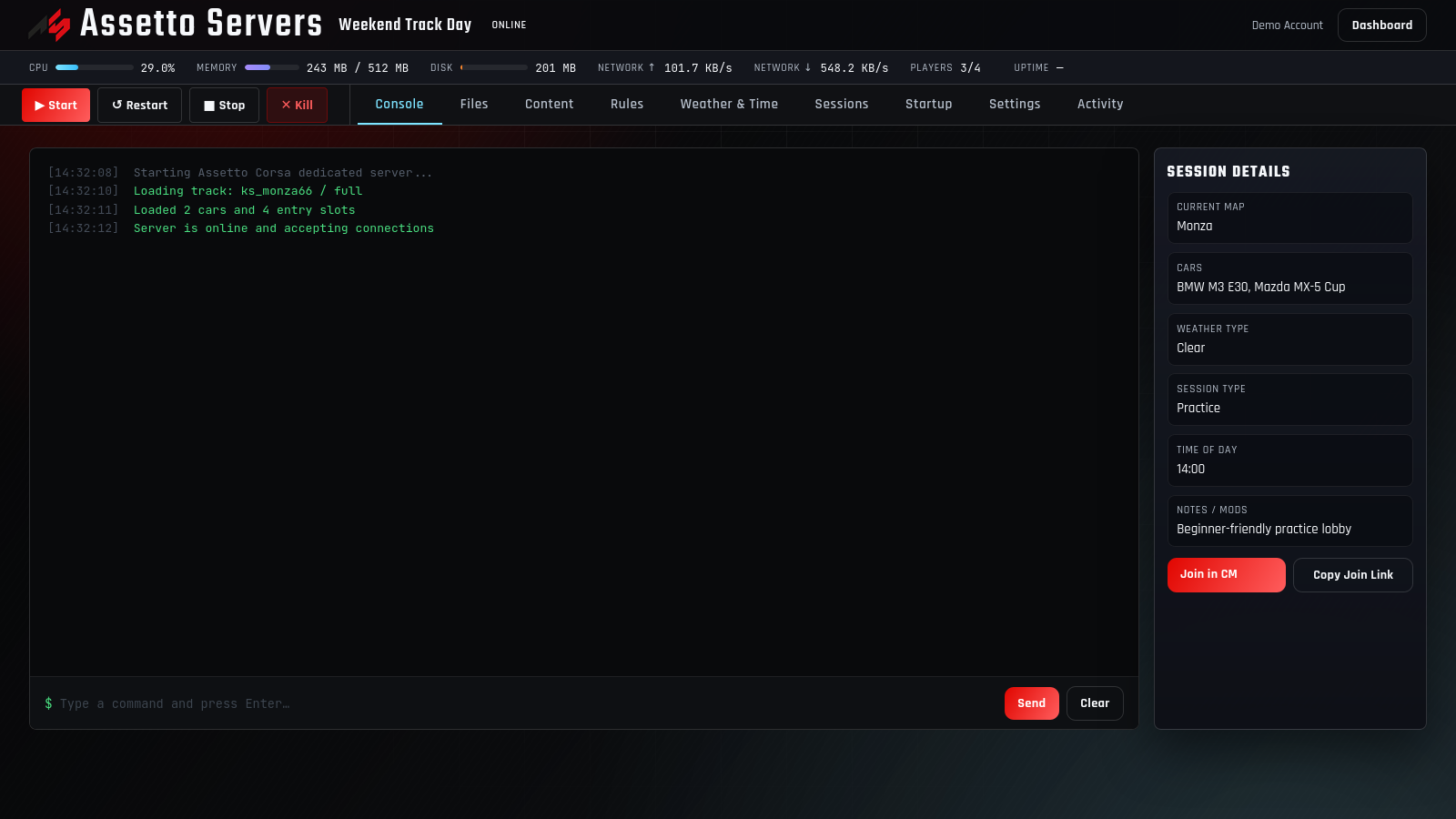
If the session is only for people you trust, follow the private Assetto Corsa server guide before sharing the join link.
Test the server before sharing it
Join once as the administrator before inviting the full group. A short test catches most configuration and content problems.
Common first-launch problems
| Problem | Likely cause | What to check |
|---|---|---|
| Server is not visible | The server is still starting or the session did not load. | Check the status badge and console, then confirm the content selection. |
| Checksum failed | The client and server have different versions of a car or track. | Install the exact same content package on every client. |
| Player cannot join | Missing content, a wrong password, or a full entry list. | Confirm the join link, password, installed mods, and available slots. |
| Wrong event settings | Changes were not applied before startup. | Apply each tab, then restart the server to load the saved configuration. |
Assetto Corsa server setup questions
Do I need to port forward an Assetto Corsa server?
Not when you use Assetto Servers hosting. The game server runs in the selected data-center location, so you do not configure ports on your home router.
Can I use custom cars and tracks?
Yes. Upload supported content archives to the Asset Library, select the track and layout, and add cars to the entry list. Players need matching copies of that content.
Can I create a server for free?
Yes. The current Free Plan includes three days, four player slots, 1 vCPU, 2 GB RAM, and 2 GB of asset storage for one free server per account.
How do friends join the server?
Once the server is online, share the Content Manager join link from the panel. Also share any required cars, tracks, and the server password.
Do I need to edit configuration files?
Most common setup can be handled through the Content, Rules, Weather & Time, Sessions, Startup, and Settings tabs. The Files tab remains available for advanced configuration.
Ready to build your first lobby?
Start with a free 4-player server
Use the same panel shown in this guide and test the complete setup workflow for three days.