
The quick answer
How do you add a custom track to an Assetto Corsa server?
Open your server’s Content tab and upload the track’s ZIP, RAR, or 7Z archive to the Asset Library. Press Change Map, find the uploaded track, choose its layout when more than one is available, and confirm that the server has at least one car entry. Press Apply Selection, restart the server, and install the exact same track version on every client.
The track and layout must both match. Selecting the right circuit with the wrong layout can prevent the session from loading or cause clients to fail their connection.
Prepare the track archive
Use the original mod package whenever possible and identify its layouts before uploading it to the server.
Use a supported archiveThe Asset Library accepts ZIP, RAR, and 7Z track packages.
Keep the folder structureDo not rename the track folder or remove its data and layout folders.
Record the versionServer and client track files need to come from the same release.
Check available storageHigh-resolution tracks and multiple layouts can require substantial space.
When a download contains several optional versions, install and test one complete variant first. Mixing files from different versions is a common source of Assetto Corsa checksum errors.
Open the server’s Content tab
- 1Open My Servers.
Find the server that should use the custom track and select Manage.
- 2Select Content.
The Content tab contains Asset Library, Current Entry List, Track, CSP options, and presets.
- 3Review map storage.
Check Total Stored and the Maps total before starting a large upload.
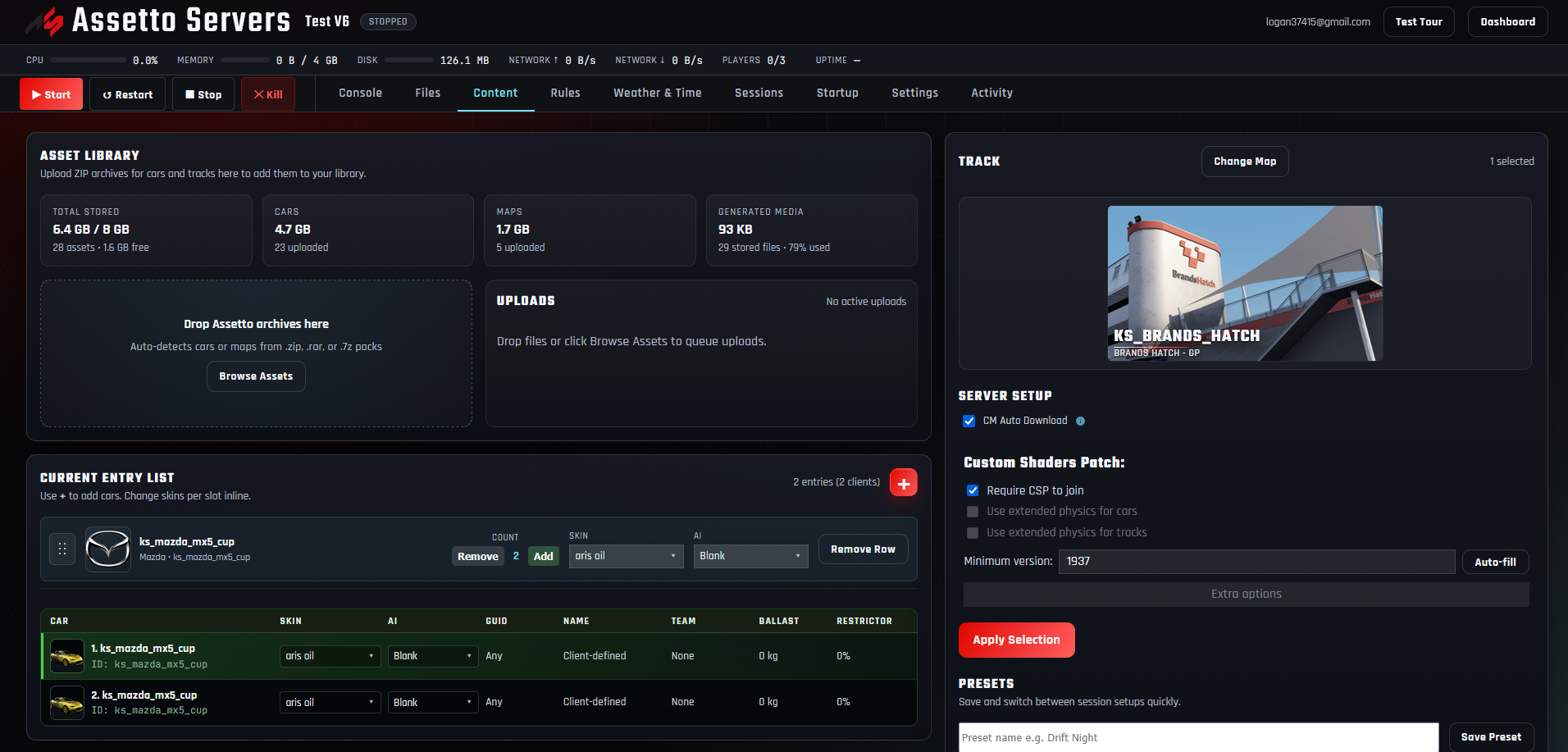
An Assetto Corsa session loads one track and one layout at a time. Other uploaded maps remain in the Asset Library for later setups and presets. For the rest of a first lobby, follow the complete server setup guide.
Upload the track to the Asset Library
Drag the archive into the upload area or select it with Browse Assets. The panel queues the file, detects the map, and extracts available layout information for the map picker.
- 1Drop or browse for the archive.
Select the original ZIP, RAR, or 7Z track package.
- 2Watch the upload queue.
Wait while the file uploads and the panel processes map metadata and previews.
- 3Confirm the Maps count changes.
A recognized circuit increases the uploaded-map total in Asset Library.
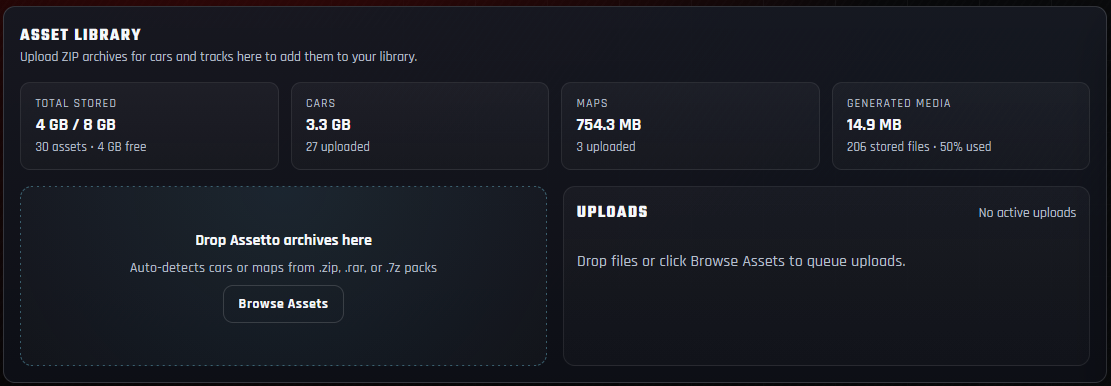
A newly uploaded track may be missing from Change Map—or may not show all layouts—until its archive has finished processing.
Select the track in Change Map
- 1Press Change Map.
The button appears in the Track section on the right side of the Content tab.
- 2Search for the circuit.
Use the map filter when the Asset Library contains many tracks.
- 3Select or choose a layout.
A single-layout track can be selected directly; a multi-layout track opens a second layout choice.
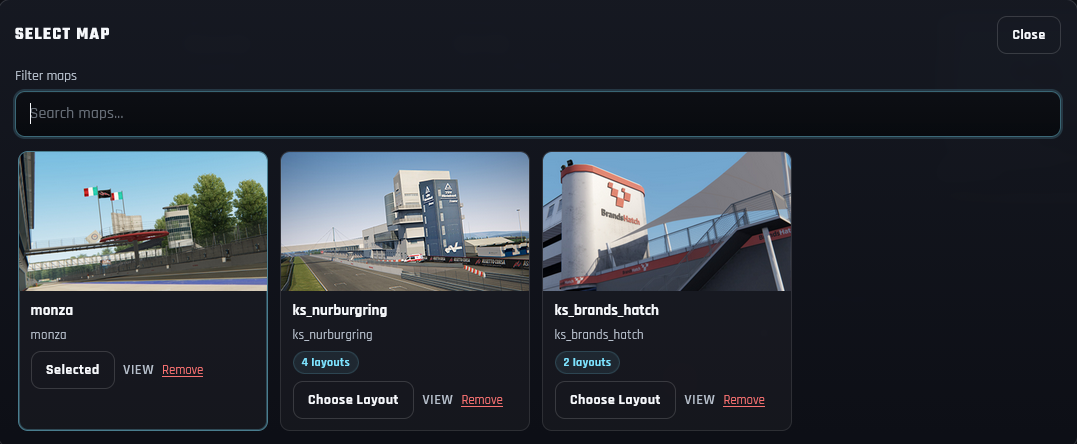
Choose the correct track layout
A layout can change the circuit length, pit lane, spawn points, timing sectors, and supported grid size. Select the exact configuration planned for the event.
- Use Choose Layout when the map card reports two or more layouts.
- Compare the layout name with the version installed in Content Manager.
- Confirm that the layout has enough pit boxes for the server’s entry count.
- Add at least one compatible car to Current Entry List before applying.
- Enable extended track physics only when the track requires it and drivers use a compatible CSP version.
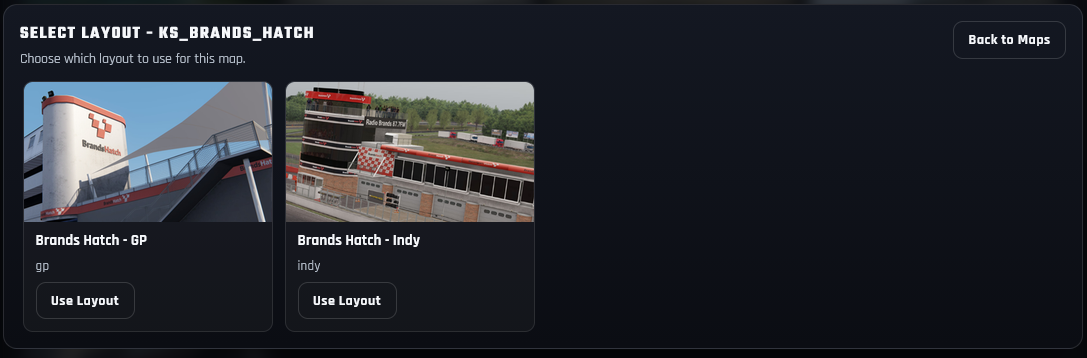
A hosting plan can provide more player slots than a particular track layout has pit boxes. Keep the entry list within the lower of those two limits. If the layout includes an AI lane, continue with the AI traffic server setup guide.
Apply the track and restart the server
- 1Review the selected map.
Confirm the track preview, layout name, car entries, and CSP requirements.
- 2Press Apply Selection.
Wait for the panel to save the selection and install the managed content.
- 3Restart the server.
Use Restart in the panel header so Assetto Corsa loads the new track configuration.
- 4Watch the Console.
Check that the expected track identifier and layout load without errors.
Do not interrupt Apply Selection. Restart only after the content operation finishes, especially when installing a large circuit for the first time.
Install the same track locally and test it
Install the same archive on the test computer through Content Manager or directly in Assetto Corsa, then join the server before sharing it with the full group.
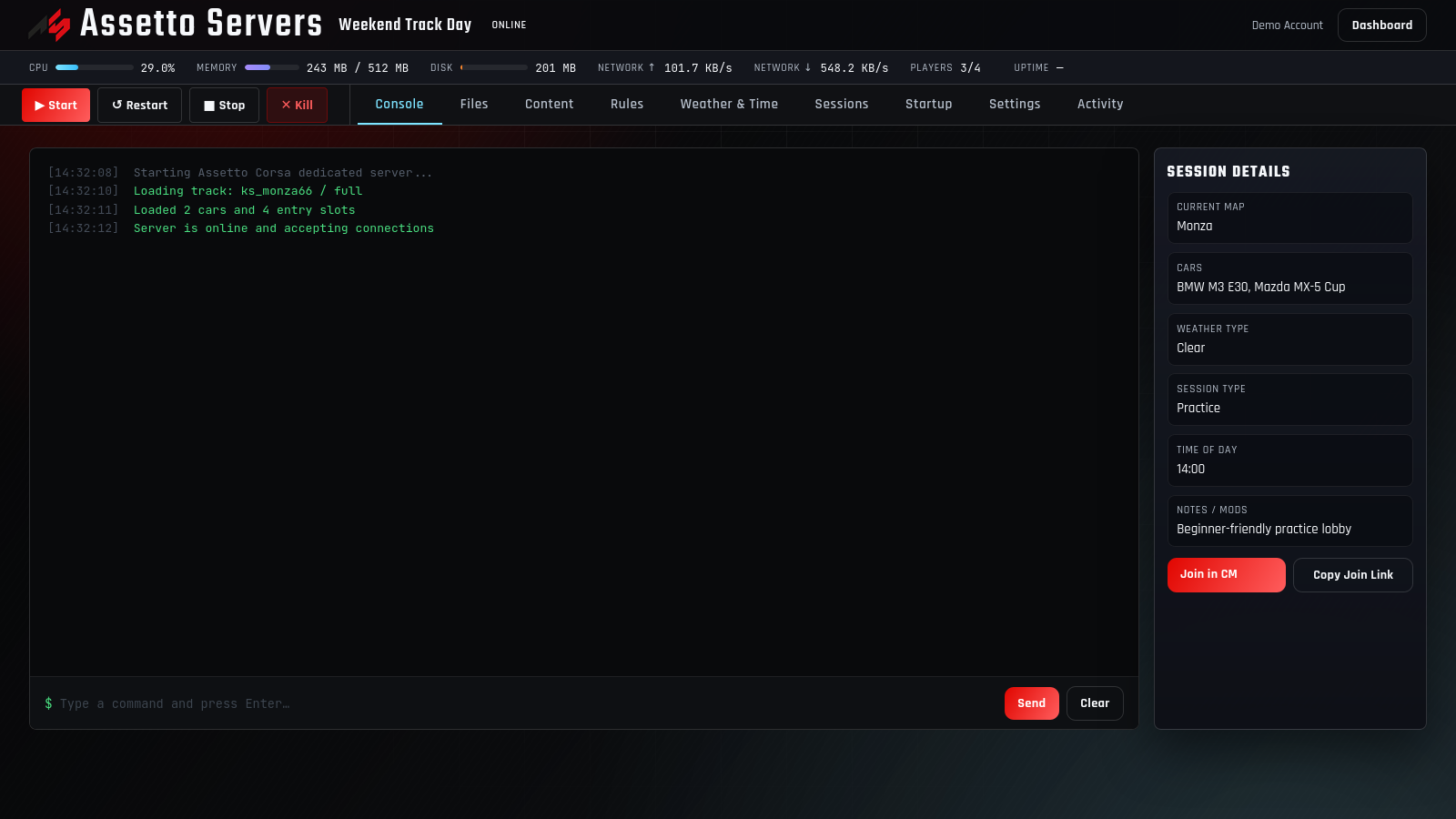
If CM Auto Download is available and correctly configured, it can provide compatible download information to Content Manager. Otherwise, share the exact track archive and layout requirements with every driver.
Fix common custom-track problems
| Problem | Likely cause | What to check |
|---|---|---|
| Track is missing from Change Map | The upload is processing or the archive was not recognized as a map. | Check the upload queue, archive structure, and whether the Maps total increased. |
| Expected layout is missing | Layout metadata is incomplete or the wrong track package was uploaded. | Verify the original archive contains that layout and upload a complete copy. |
| Checksum failed | The server and client track files are different versions. | Reinstall the exact same archive on the server and every client. |
| Apply Selection fails | No map, no car entry, or an unfinished content operation. | Select one map and at least one car, then wait for processing to finish. |
| Server loads the old track | The new selection was not applied or the server was not restarted. | Apply again, wait for completion, and restart from the panel header. |
| Players disconnect while loading | Missing track files, layout mismatch, CSP mismatch, or too many entries for the pit boxes. | Compare content and CSP versions, selected layout, and grid capacity. |
Adding tracks to an Assetto Corsa server
Which track archive formats can I upload?
The Asset Library accepts ZIP, RAR, and 7Z archives. Keep the original map, data, and layout folders intact.
Can the server store more than one track?
Yes. Asset Library can store multiple maps for reuse, but each active Assetto Corsa session loads one selected track and layout.
What is the difference between a track and a layout?
The track is the overall circuit package. Layouts are configurations inside it, such as GP, short, drift, or endurance variants, with their own route and session data.
Does every player need the custom track?
Yes. Every player needs the same track and layout files as the server. Different versions commonly produce checksum failures.
Do I need to restart after changing tracks?
Yes. Apply Selection first, wait for it to finish, and restart the server so the new map and layout are loaded.
Why can’t I use every player slot on a track?
The track layout may contain fewer pit boxes than the hosting plan provides. Limit the entry list to the layout’s supported grid size.
Ready to build a custom-track lobby?
Start with a free 4-player server
Upload a circuit, select its layout, and test the complete workflow with the same panel shown in this guide.