
The quick answer
How do you add a custom car to an Assetto Corsa server?
Open your server’s Content tab, upload the car’s ZIP, RAR, or 7Z archive to the Asset Library, press the + button beside Current Entry List, select the car, and set its count and skins. Choose and add a compatible track, press Apply Selection, restart the server, and make sure every driver has the exact same version of the car installed.
Matching files matter: a client with a different car version can receive an Assetto Corsa checksum error even when the car has the same display name.
Prepare the car archive
Keep the original mod structure intact and confirm which version you are installing before uploading it to the server.
Use a supported archiveThe Asset Library accepts ZIP, RAR, and 7Z car packages.
Keep the car folder intactDo not rename or remove internal data files after receiving the mod.
Record the versionUse the same release on the server and every player’s computer.
Check available storageLarge car packs can use significant asset-storage space.
If you are building your first lobby, start with the complete Assetto Corsa server setup guide. Then test one car first and upload the rest of the pack in smaller groups.
Open the server’s Content tab
- 1Open My Servers.
Find the server that should receive the custom car and select Manage.
- 2Select Content.
The Content tab contains the Asset Library, entry list, track, CSP options, and presets.
- 3Review storage.
Check Total Stored and the Cars total before starting a large upload.
You can prepare the content while the server is online, but plan to restart it after applying the new entry list.
Upload the car to the Asset Library
Drag the archive into the upload area or use Browse Assets. The panel queues the upload, detects whether it contains cars or maps, and adds recognized cars to your reusable library.
- 1Drop or browse for the archive.
Select the original ZIP, RAR, or 7Z package from your computer.
- 2Watch the upload queue.
Wait while the file uploads and its car metadata is processed.
- 3Confirm the Cars count changes.
A successful upload increases the uploaded-car total in Asset Library.
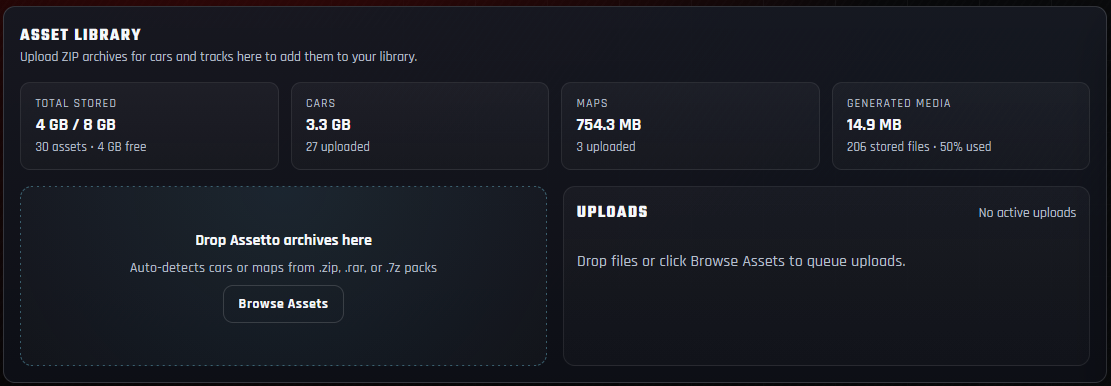
A car may not appear in the picker until its archive has finished uploading and the panel has extracted its metadata.
Add the car to the current entry list
Uploaded cars stay in the Asset Library until you add them to this server’s entry list.
- 1Press the red + button.
It appears beside Current Entry List in the Content tab.
- 2Choose the manufacturer.
The car picker groups recognized cars by brand to make large libraries easier to browse.
- 3Select the car.
Add the exact model you want players to use in this session.
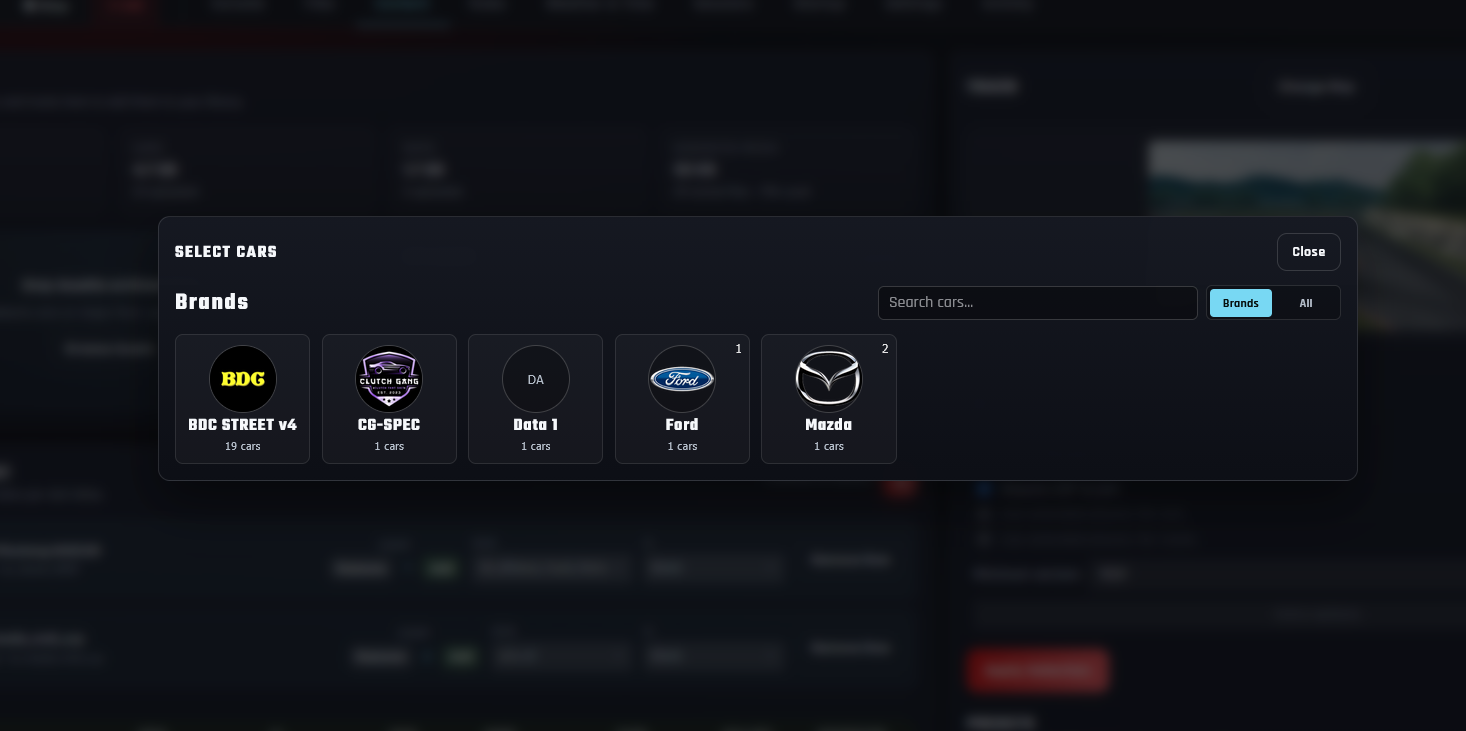
Choose the car count and skins
Each entry represents a usable slot in the Assetto Corsa entry list. Add enough entries for the drivers who should be able to choose that car.
- Use Add to increase the number of entries for a car and Remove to decrease it.
- Select a skin for each entry when drivers should use specific liveries.
- Leave AI set to Blank for normal player-controlled slots.
- Keep the total entry count within the player-slot limit of your hosting plan.
- Select the track and layout that the new car will run on before applying.
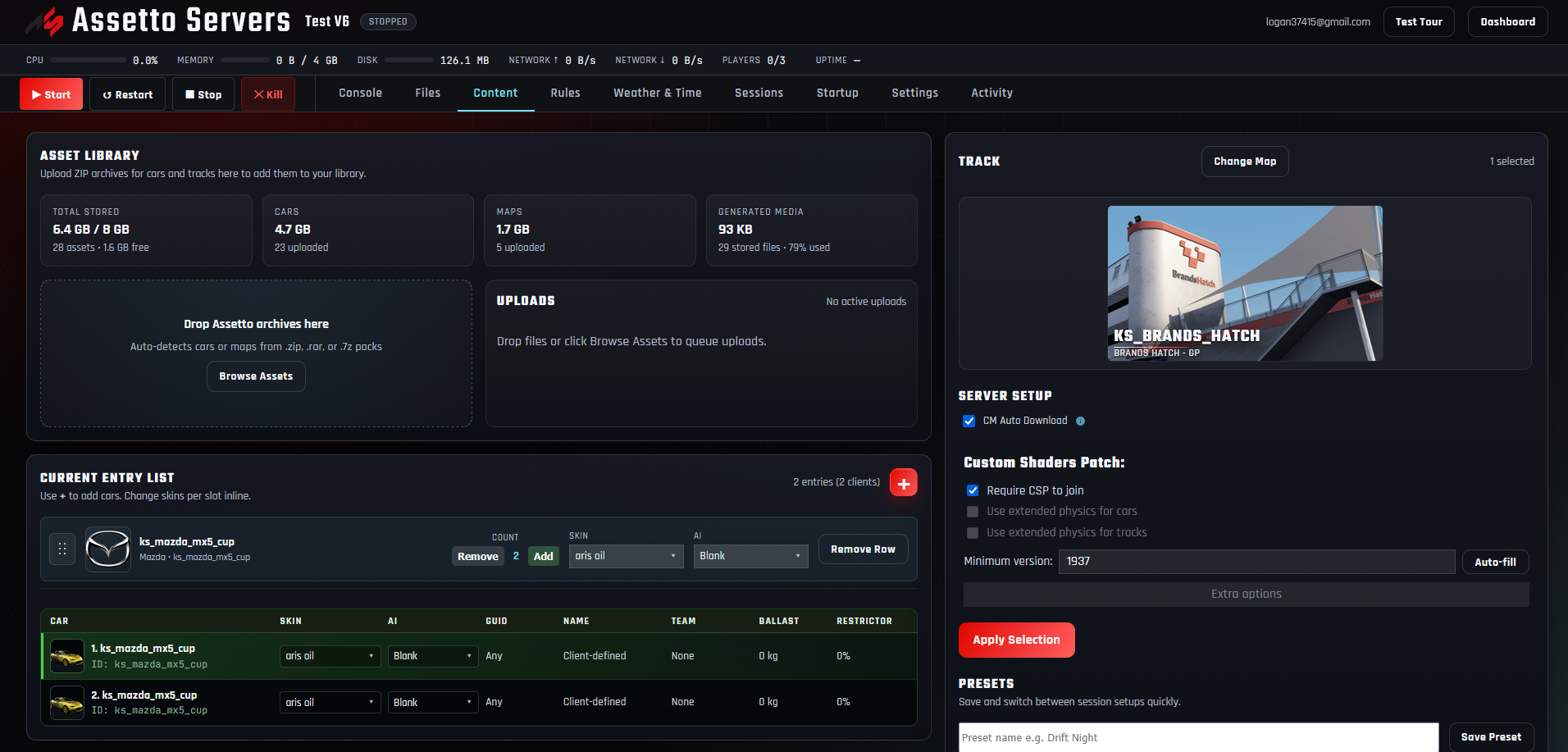
You can repeat this step for other cars. The final entry list can contain multiple models as long as the total entries fit the server’s available slots.
Apply the selection and restart the server
- 1Review the track and car entries.
Make sure the intended layout, car count, skins, and CSP requirement are correct.
- 2Press Apply Selection.
Wait for the panel to finish saving and installing the selected content.
- 3Restart the server.
Use Restart in the panel header so Assetto Corsa loads the new configuration.
- 4Check the Console.
Confirm the server loads the chosen track, cars, and expected number of entry slots.
Do not restart while the content operation is still running. Interrupting an install can leave the server with an incomplete car folder or an old entry list.
Install the same car locally and test it
The server files and each player’s local files must match. Install the same archive in Assetto Corsa or Content Manager before joining.
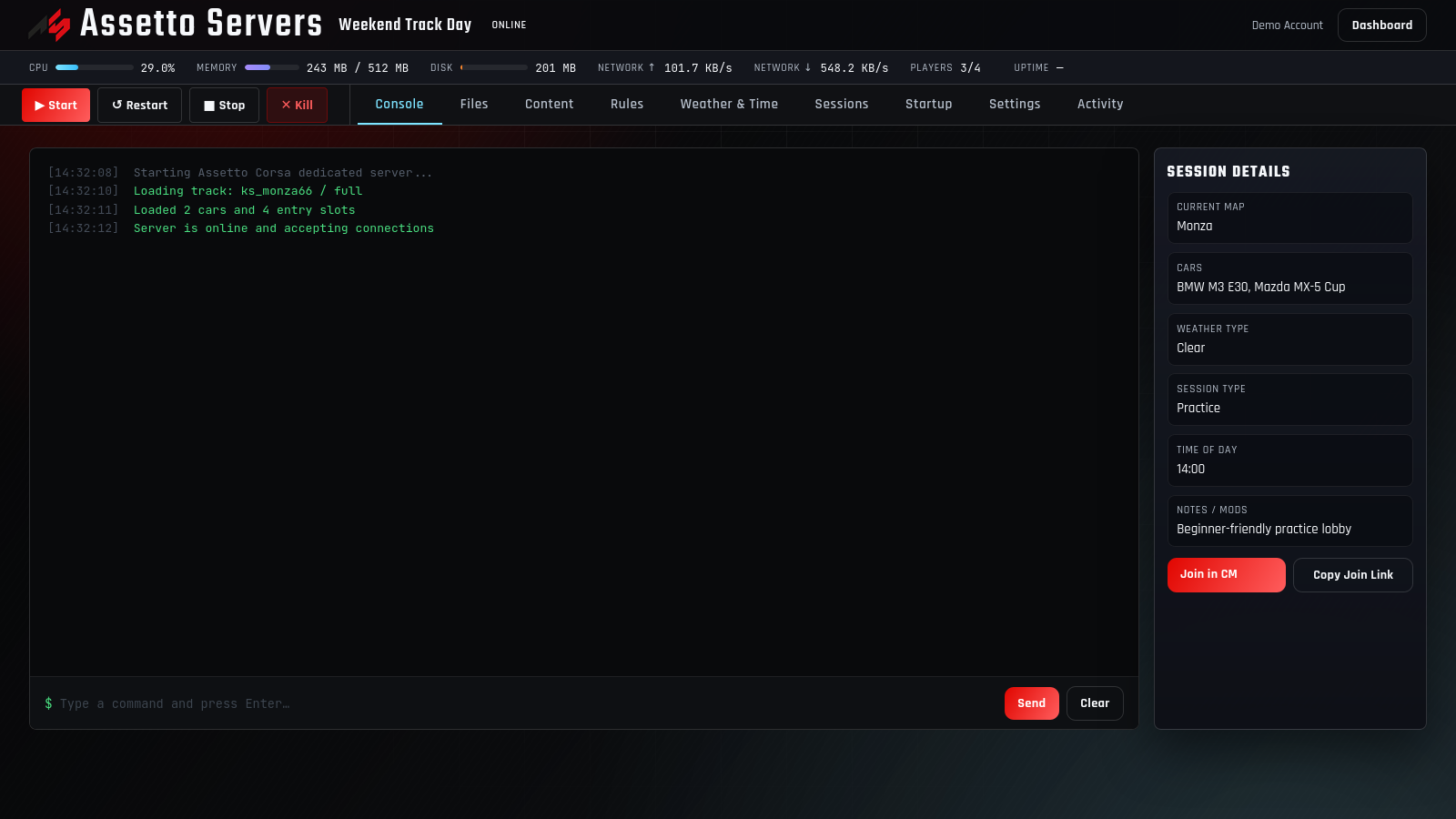
If CM Auto Download is available and correctly configured for the server, it can provide compatible download information to Content Manager. Otherwise, share the exact car archive with every driver before the event.
Fix common custom-car problems
| Problem | Likely cause | What to check |
|---|---|---|
| Car is missing from the picker | The upload is still processing or the archive was not recognized. | Check the upload queue, archive format, and whether the Cars total increased. |
| Checksum failed | The client and server car files are different versions. | Reinstall the exact same archive on the server and every client. |
| Car has no usable skins | The archive is missing a valid skin or its metadata could not be read. | Inspect the original package and upload a complete copy. |
| Apply Selection fails | No track is selected, no car entry exists, or an upload is unfinished. | Select a track and at least one car, then wait for all processing to finish. |
| Server loads the old car list | The selection was not applied or the server was not restarted. | Apply again, wait for completion, and restart from the panel header. |
| Some drivers cannot join | They are missing the car, have a different CSP requirement, or all entries are occupied. | Compare files and CSP versions, then confirm an entry slot is available. |
Adding cars to an Assetto Corsa server
Which car archive formats can I upload?
The Asset Library accepts ZIP, RAR, and 7Z archives. Keep the original internal folder structure intact.
Can a server use more than one car model?
Yes. Add each model to Current Entry List and assign the number of entries you want. The combined entry count must fit the server’s available player slots.
Does every player need the custom car?
Yes. Every player joining an entry that uses the custom car needs matching local files. Different releases can produce checksum errors.
Do I need to restart after adding a car?
Yes. Apply Selection first, wait for it to finish, and then restart the server so the new car list and entry configuration are loaded.
Can each entry use a different skin?
Yes. When the uploaded car contains multiple recognized skins, choose the desired skin for each entry in the list.
Can I use these cars as AI traffic?
Yes. Set the intended Content entries to AUTO or FIXED, then follow the AI traffic server setup guide to detect the map's AI lane and configure the Traffic tab.
What does CM Auto Download do?
When available and configured, it generates information Content Manager can use to find required content. Follow the CM Auto Download setup guide, and still verify that drivers installed the same car version used by the server.
Ready to build a custom-car lobby?
Start with a free 4-player server
Upload a car, build the entry list, and test the complete workflow with the same panel shown in this guide.