
The quick answer
How do you set up AI traffic on an Assetto Corsa server?
Select a traffic-ready map and its exact layout in Content, then set at least one car
entry to AUTO or FIXED. Open Traffic and let the panel
scan for fast_lane.ai or fast_lane.aip. Use the bundled lane when one is
detected, or upload a custom primary lane. Turn on AI traffic, begin with the default
traffic and spawning values, press Apply Traffic Settings, restart the server, and join
to test the lane direction, spawn behavior, gaps, and speed.
A working traffic server needs both pieces: a valid primary AI lane for the selected layout and at least one traffic-capable car slot. Enabling the toggle without both will not produce traffic.
Choose a traffic-ready map, layout, and car set
Open Content and choose the map, exact layout, and cars for the cruise. Traffic data belongs to a specific layout, so two layouts from the same map can have different AI-lane support.
Select the exact layoutChoose the road or traffic layout that contains a usable AI spline.
Add lightweight traffic carsUse stable car versions that load reliably and fit the intended road speeds.
Keep player cars availableLeave enough normal entries for the people joining the server.
Apply the Content selectionSave the map, layout, cars, skins, and entry list before opening Traffic.
Follow the guides for adding an Assetto Corsa track and adding cars to the server, then return here to configure traffic.
Mark traffic-capable car slots in Content
In the Current Entry List, use the AI selector on the rows intended for traffic. The Traffic tab counts AUTO and FIXED entries as traffic-capable slots.
| AI value | Use it for | Traffic result |
|---|---|---|
| AUTO | A slot AssettoServer may automatically assign to traffic. | Counted under Automatic on the Traffic tab. |
| FIXED | A slot reserved as a fixed AI entry. | Counted under Fixed on the Traffic tab. |
| Blank or NONE | A normal player entry or a slot excluded from AI traffic. | Not counted as traffic-capable. |
Keep enough entries for players. The Players group also has a Soft player limit that can preserve room for AI when the server becomes busy.
Open Traffic and scan the selected layout
Select the Traffic tab. The panel checks the selected layout's AI directory and reports its source and files. Use Re-scan after changing or replacing traffic data.
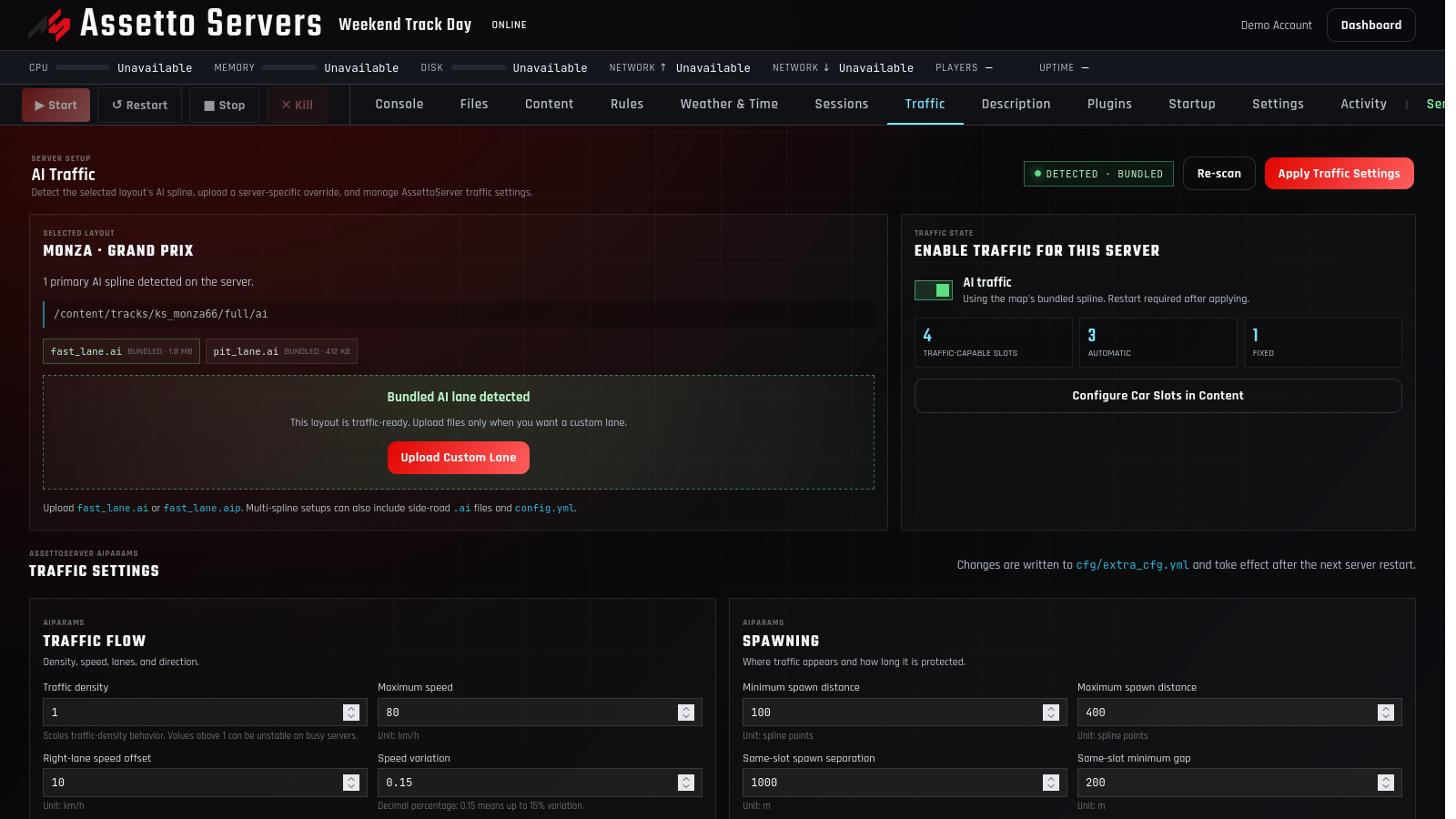
Detected · BundledThe chosen layout already contains a usable AI lane.
Detected · CustomA server-specific uploaded lane is overriding the bundled files.
Installing bundled splineThe panel found traffic files in the map archive and is copying them into place.
No AI lane detectedThe selected layout needs a custom primary lane before traffic can be enabled.
Use the bundled lane or upload a custom AI spline
If the scan detects a bundled lane, use it for the first test. When the layout has no lane—or a custom traffic setup requires different routing—press Upload AI Lane.
- 1Include one primary lane.
Upload
fast_lane.aiorfast_lane.aip. The primary lane is required. - 2Add optional side-road lanes.
A multi-spline setup can include additional
.aifiles for connected roads. - 3Add the optional traffic config.
Include
config.ymlorconfig.yamlwhen the spline package was designed with one. - 4Confirm the custom status.
Wait for the upload and verify that the Traffic tab lists the expected primary and side-road files.
Traffic maps often use purpose-built splines for multiple road lanes, intersections, or two-way travel. Test the lane package supplied for that exact map and layout.
Enable AI traffic and verify the slot summary
Turn on AI traffic only after the status shows a detected lane. Before applying, check that Traffic-capable slots is greater than zero and that the Automatic and Fixed totals match the Content entry list.
Use a few AI slots and the default density for the first run. Add more cars after the server stays stable and traffic moves cleanly through the full route.
Tune traffic flow, spawning, driving, and player behavior
The default AiParams are a safer baseline than changing every field at once. Make one group of changes, apply it, and test before continuing.
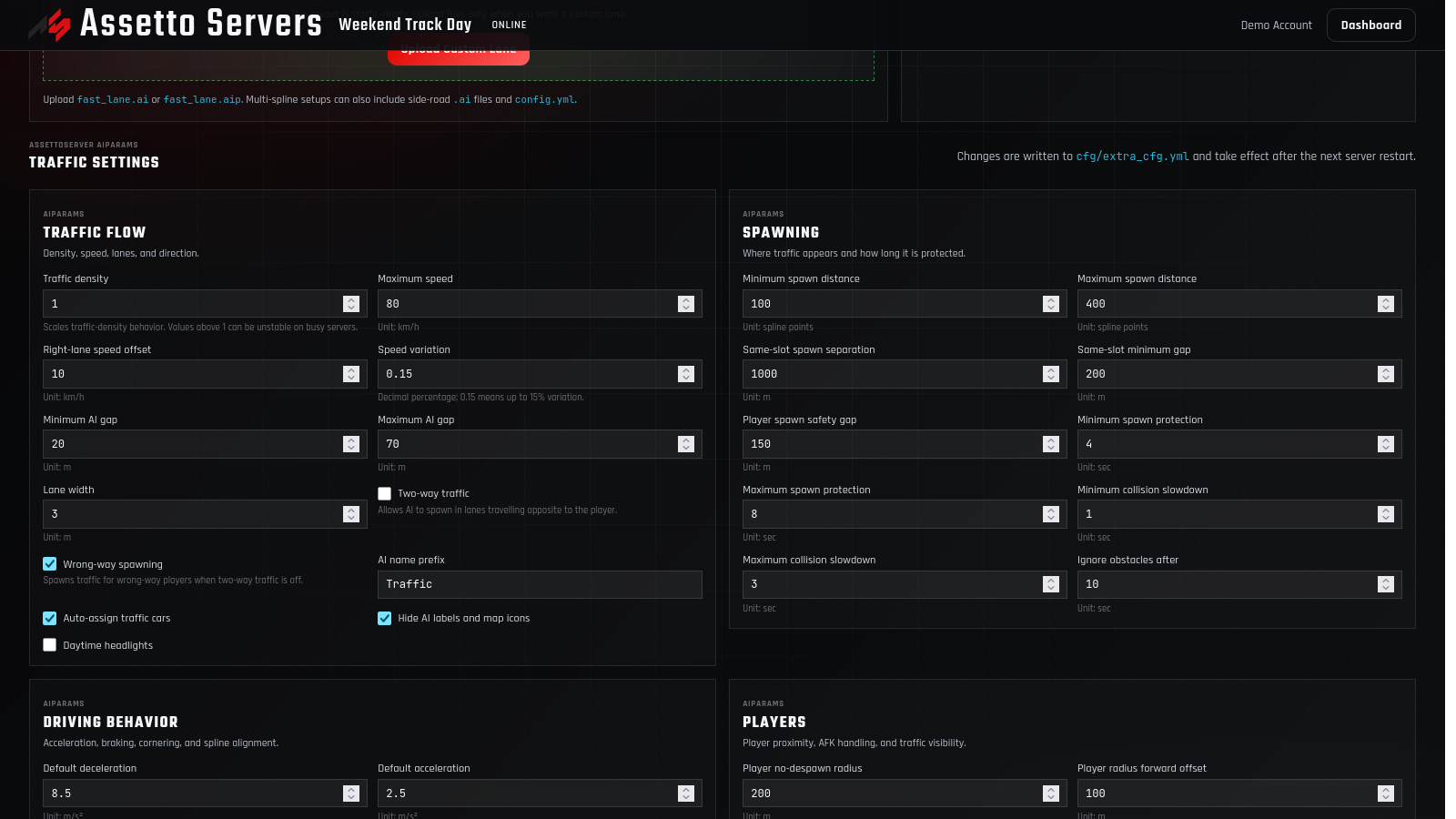
| Group | Main controls | First adjustment to make |
|---|---|---|
| Traffic Flow | Density, maximum speed, speed variation, AI gaps, lane width, two-way traffic, and wrong-way spawning. | Set the intended maximum speed and leave density at 1 for the baseline test. |
| Spawning | Minimum and maximum spawn distance, separation, player safety gap, and spawn protection. | Increase the player safety gap if vehicles appear too close to drivers. |
| Driving Behavior | Acceleration, deceleration, cornering, spline height, camber smoothing, and update rate. | Keep defaults unless traffic brakes late, corners poorly, or sits above or below the road. |
| Players | No-despawn radius, forward offset, AFK timeout, spline distance, and soft player limit. | Use the soft limit when player joins should not consume every traffic slot. |
| Advanced Overrides | Hourly density and structured lane, area, and car-specific overrides. | Leave these blank until the basic traffic route works. |
The panel warns that Traffic density values above 1 can be unstable on busy servers. Increase it gradually and watch CPU, memory, collisions, and spawn behavior.
Apply Traffic Settings, restart, and test the full route
Press Apply Traffic Settings. The panel writes EnableAi and AiParams to cfg/extra_cfg.yml; the saved changes take effect after the next server restart.
- 1Restart the server.
Wait for the server to return online before joining.
- 2Join as a normal player.
Drive far enough for traffic to spawn and complete the entire intended route.
- 3Watch both travel directions.
Verify two-way and wrong-way behavior only when those options are intentionally enabled.
- 4Test with multiple players.
Confirm AI slots remain available and traffic stays stable near more than one driver.
Fix common Traffic Tab problems
| Problem | Likely cause | What to do |
|---|---|---|
| No AI lane detected | The exact layout has no fast_lane.ai or fast_lane.aip. | Choose the traffic layout or upload its matching primary lane. |
| Traffic is enabled but no cars appear | No entry uses AUTO or FIXED, or the server was not restarted. | Configure traffic-capable slots, apply again, and restart. |
| Cars drive in the wrong direction | The lane package or direction settings do not match the map. | Verify the intended spline and review Two-way traffic and Wrong-way spawning. |
| Cars spawn too close | Spawn distances or the Player spawn safety gap are too small. | Increase the relevant safety values and retest with multiple players. |
| Traffic disappears after changing the map | Traffic is disabled when the selected map or layout changes for safety. | Open Traffic, scan the new layout, verify its lane and slots, then enable and apply again. |
| Custom lane is worse than the bundled lane | The override was made for another map version or layout. | Use Remove Custom Files to restore bundled originals where available, then re-scan. |
If a player cannot join at all, first rule out mismatched cars or maps with the checksum failed troubleshooting guide.
Assetto Corsa AI traffic questions
What is fast_lane.ai?
It is the primary AI spline for a track layout. AssettoServer uses that route data to place and move traffic. The Traffic tab also accepts fast_lane.aip.
Does every Assetto Corsa map support traffic?
No. The selected layout needs a compatible primary AI lane, and more complex traffic maps may need side-road splines or a matching config.yml.
What is the difference between bundled and custom traffic files?
Bundled files come from the selected map archive. Custom files are server-specific overrides uploaded through the Traffic tab. Removing a custom override restores backed-up bundled files when they are available.
Why does the Traffic tab show zero traffic-capable slots?
No Content entry is set to AUTO or FIXED. Open Configure Car Slots in Content, change the intended AI rows, apply the Content selection, and return to Traffic.
Can I run two-way traffic?
Yes, but the spline package and layout need to support the intended directions. Enable Two-way traffic only after the one-direction baseline works, then drive the full route in both directions.
Do Traffic settings require a restart?
Yes. Apply Traffic Settings saves the values to cfg/extra_cfg.yml, and they take effect after the next server restart.
Why was traffic disabled when I changed the track layout?
The panel disables traffic after a map or layout change so a spline from the previous selection cannot run on the wrong road. Scan and re-enable traffic for the new layout.
Build a stable traffic server
Start with one lane, a few AI cars, and the defaults
Confirm the baseline route first, then increase density, add side roads, or tune advanced behavior one change at a time.