
The quick answer
How do you configure Assetto Corsa race sessions?
Open the server panel and select Sessions. Enable Practice, Qualification, and Race, then set each session’s duration and joining behavior. For the race, choose Laps or Time, set the race length, initial delay, completion window, result screen, join type, pit requirement, and reversed grid. Press Apply Sessions, wait for Sessions applied, restart the server, and run through the full rotation with a test driver.
For a first event, keep joining open during practice and qualifying, close race joining at the start, and test a short rotation before increasing the duration or lap count.
Open Sessions and choose the event flow
From My Servers, manage the intended Assetto Corsa server and open Sessions. Each checked heading adds that phase to the event configuration. Leave only the phases you actually want drivers to complete.
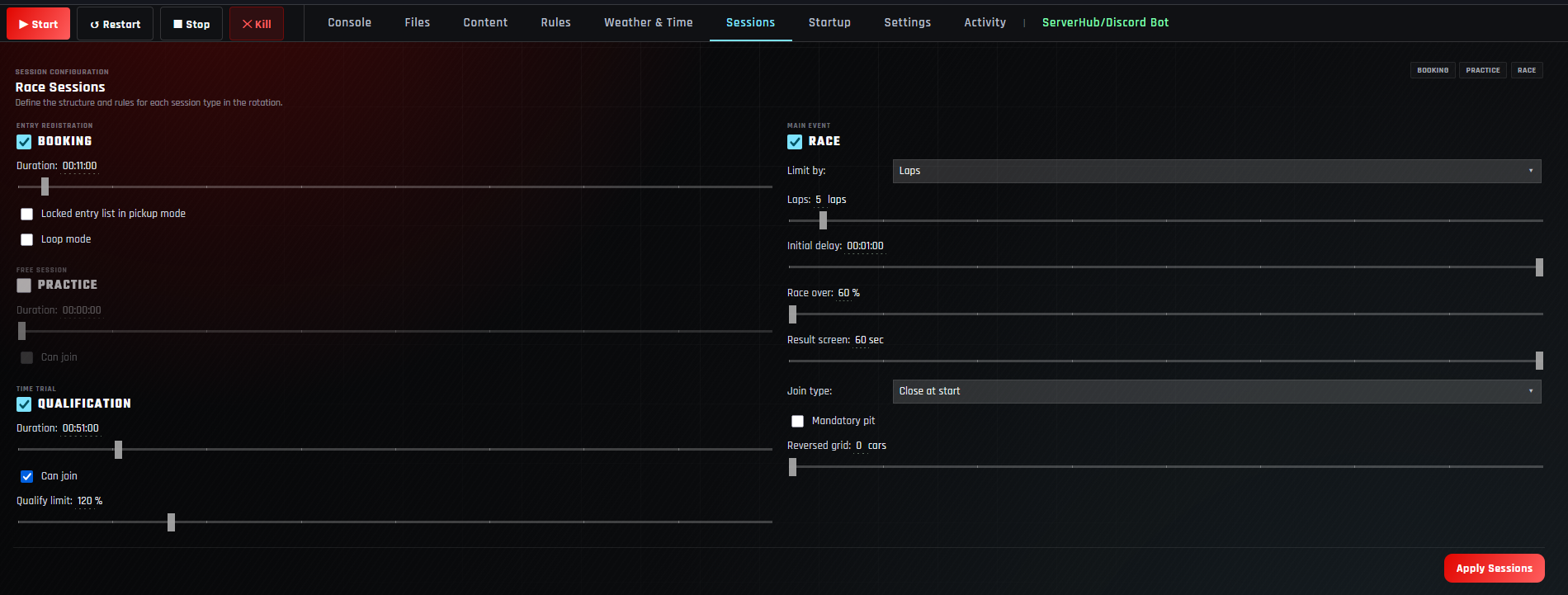
PracticeGives drivers time to join, load the track, and prepare a setup.
QualificationCreates the timed session used to establish race order.
RaceRuns the main event by a chosen number of laps or minutes.
BookingOptional entry-registration controls for pickup and scheduled workflows.
Select the cars, track, layout, and entry count before finalizing session timing. Start with the complete server setup guide if the base lobby is not ready.
Configure the practice session
Check Practice, choose a duration, and decide whether Can join should remain enabled. Open joining is the most forgiving choice for public events because late drivers can enter while everyone is learning the car and track.
- 1Enable Practice.
Uncheck it only when the event should move directly into qualifying or the race.
- 2Set the duration.
Use enough time for drivers to load, complete several laps, and address setup problems.
- 3Choose Can join.
Keep it enabled for casual or public sessions; close it only for a tightly controlled event flow.
Try 20–30 minutes for a normal community race test. Shorten it after the group consistently joins and loads without trouble.
Configure the qualifying session
Check Qualification and choose how long drivers have to set a lap. The session should be long enough for an out lap and more than one representative attempt on the selected circuit.
| Setting | What to decide | Practical starting point |
|---|---|---|
| Qualification | Whether the rotation includes a timed qualifying phase. | Enable it for races that need a qualifying-based grid. |
| Duration | How much qualifying time the drivers receive. | Allow at least an out lap and two timed laps. |
| Can join | Whether late drivers may connect during qualifying. | Leave enabled for public events; close it for controlled leagues if required. |
| Qualify limit | The server’s qualifying completion limit value. | Keep 120% until the event has tested a different requirement. |
A five-minute qualifying session may be unusable on a long circuit. Time one complete out lap and flying lap before choosing the final duration.
Configure the race session
Check Race, then define the main event. The correct settings depend on the track, expected field size, and whether the community is running a casual sprint, a league round, or a longer race with pit strategy.
- 1Choose Limit by.
Select Laps for a fixed lap count or Time for a timed event.
- 2Set the race value.
Choose the number of laps or minutes shown by the control after selecting the limit type.
- 3Set Initial delay.
Give the grid enough time to load and prepare before the start sequence.
- 4Review Race over and Result screen.
Leave enough time for trailing cars to finish and for drivers to read the final result.
- 5Choose Join type.
Use Close at start for a normal competitive race, or another available mode when the event specifically needs it.
- 6Set pit and grid options.
Enable Mandatory pit only when pit strategy is part of the event, and choose how many cars should be reversed.
Before requiring a pit stop, confirm the fuel rate and tyre wear in the server rules guide. Use the weather and time guide to test the event conditions separately.
Apply Sessions, restart, and test the full rotation
- 1Press Apply Sessions.
Wait for the panel to report Sessions applied before leaving the tab.
- 2Restart the server.
Use Restart in the panel header so the server loads the updated session configuration.
- 3Join during practice.
Confirm the intended session is active and that joining works as configured.
- 4Advance through qualifying.
Verify its duration, late-join behavior, and transition into the race.
- 5Complete the race.
Check the start delay, lap or time limit, pit behavior, finish window, results, and next rotation.
A five-minute practice, five-minute qualifying session, and short race reveal transition problems much faster than waiting through the full event schedule.
Assetto Corsa session configuration questions
Do I need practice, qualifying, and race enabled?
No. Enable only the phases your event needs. A practice-only server works well for track days, testing, drifting, and casual driving.
Should drivers be able to join during qualifying?
For public and casual events, allowing joins is usually more forgiving. Controlled leagues may close joining once the scheduled session begins.
Should a race be limited by laps or time?
Use laps when the exact number of circuits matters. Use time when the schedule needs a predictable race window across tracks with different lap lengths.
What does Booking control?
Booking provides entry-registration controls, including duration, pickup-mode entry locking, and loop mode. Leave the existing values unless the event specifically uses a booking workflow.
What does Reversed grid change?
It reverses the configured number of leading grid positions. Keep it at zero for a normal qualifying order, and test any reversal before a competitive event.
When should I enable Mandatory pit?
Enable it only when the race format is designed around a required stop. Confirm the race distance, fuel rate, tyre wear, and pit behavior during a complete test.
Why did the old session settings remain active?
Make sure Apply Sessions completed successfully, then restart the server. If the problem remains, reload the Sessions tab and confirm the saved values before applying again.
Can I save this event setup for later?
The Content tab supports presets that can keep the content and related managed settings together. Review the Sessions tab after loading a preset and before starting the event.
Build the complete event
Test the rotation before race night
Start with short sessions, verify every transition with another driver, and then apply the final practice, qualifying, and race lengths.