
The quick answer
How do you connect an Assetto Corsa server to Discord?
Discord Bot Plan required: You must purchase and activate the Assetto Corsa Discord Bot Plan before you can use the hosted bot panel or connect an Assetto Corsa server to Discord.
Create an application in the Discord Developer Portal, add a bot, and invite it to your Discord server with the bot and applications.commands scopes. Copy the Discord server’s Guild ID and the bot token into the Assetto Servers bot panel. Then open Assetto Servers, connect your game server through ServerHub, and add a status command from the Server Status tab.
Treat the bot token like a password. Never place it in Discord, a screenshot, a support message, a public repository, or a server configuration you plan to share.
Have the Discord server and Assetto server ready
The bot hosts the Discord connection; it does not replace the game server. You need a Discord server where you can manage integrations and an Assetto Corsa server that is already provisioned. If your lobby is not ready, follow the complete Assetto Corsa server setup guide first.
Discord accountUse an account allowed to manage the Discord server and install applications.
Assetto serverThe game server should appear in your Assetto Servers account.
Discord Bot planCreate the hosted bot from the Assetto Corsa Discord Bot page.
Separate browser tabsKeep the Discord Developer Portal and bot panel open while completing setup.
Using a dedicated application keeps its token, commands, permissions, and connected community easy to identify.
Enable Developer Mode and copy the Discord Guild ID
Discord calls each Discord server a guild. The numeric Guild ID tells the hosted bot which community it belongs to.
- 1Open Discord User Settings.
Select the gear beside your Discord username.
- 2Open Advanced.
Turn on Developer Mode so Discord exposes copyable IDs.
- 3Right-click the Discord server icon.
Choose Copy Server ID from the menu.
- 4Keep the number ready.
The bot panel accepts a 17–19 digit Guild ID without spaces.
Do not use a channel ID, user ID, application ID, or client ID. The setup field needs the ID copied from the Discord server itself.
Create the application and bot in Discord
- 1Open the Discord Developer Portal.
Sign in with the Discord account that manages your community.
- 2Select New Application.
Give it a recognizable name such as your community or race server name.
- 3Open Bot and add the bot user.
The bot user is the account your drivers will see online in Discord.
- 4Reset and copy the token.
Copy the new bot token directly into a password manager or the bot panel. Discord may only show it once.
Assetto Servers only needs the Discord Bot Token and Guild ID. Never paste a Client Secret into the token field.
Use the required scopes and safe bot permissions
Configure the app for a guild installation, then invite it to the same Discord server whose Guild ID you copied.
Installation scopesEnable bot and applications.commands.
Basic permissionsAllow View Channels, Send Messages, Embed Links, and Read Message History.
Gateway intentsLeave Presence, Server Members, and Message Content intents off; the bot only needs Guilds.
Install the appOpen the generated install link, choose your Discord server, and approve the requested permissions.
Use the smallest permission set the bot needs. Add Manage Roles only if you later configure leaderboard reward roles, and keep the bot role above only those reward roles.
Save the Guild ID and bot token in Assetto Servers
Return to your Assetto Servers account and open the hosted bot. New bots show the guided setup automatically; the same fields remain available later under Discord Setup.
- 1Paste the Discord Server Guild ID.
Use the 17–19 digit server ID copied in Step 2 and press Next.
- 2Paste the Discord Bot Token.
Use the token from the Bot section of the Developer Portal.
- 3Save Discord Setup.
The token is stored securely and will not be displayed again after saving.
- 4Confirm the bot starts.
Allow the panel to apply the settings and restart ServerHub when required.
Leave the token field blank when saving other Discord settings if you want to keep the already stored token.
Connect your Assetto Corsa server through ServerHub
Open Assetto Servers in the bot panel. Select the game server you want Discord to monitor, press Add Selected Servers, review the confirmation, and approve it. The managed connection creates secure Hub credentials, installs or configures the Hub plugin, restarts the affected services when needed, and waits for a heartbeat.
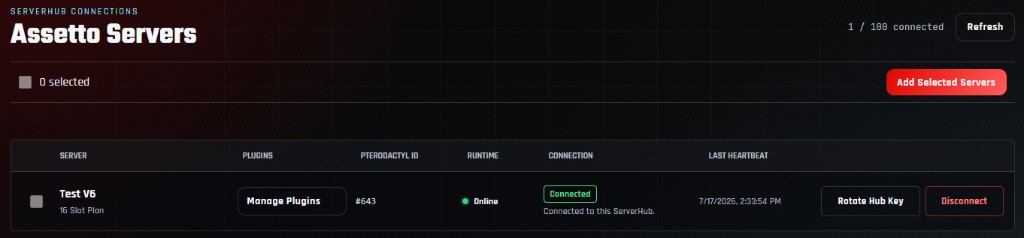
Do not configure Discord status from a server still marked Configuring or Error. Use Retry Setup if the panel reports a recoverable connection problem.
Add a live server-status command
For a complete explanation of shared commands, embed fields, update intervals, and Join URLs, follow the Assetto Corsa Discord server-status guide.
- 1Open Server Status.
Choose the Server Status tab from the bot panel.
- 2Press Add Status.
Select the connected Assetto server from your account; its address and join details are filled automatically.
- 3Review the command and title.
Use a short command name containing lowercase letters, numbers, and hyphens, such as race-server.
- 4Choose the appearance.
Keep the default template or add an optional thumbnail and embed color.
- 5Save Server Status.
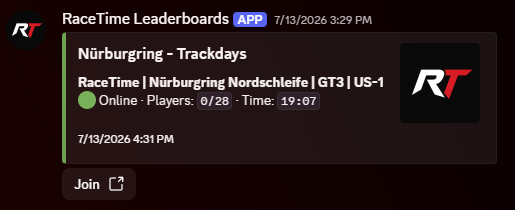
The Discord slash command will show the live state, player count, session information, and available Join action.
Follow the Assetto Corsa server plugin installation guide to add Timing or Drift through Manage Plugins. The Assetto Corsa plugins page explains what each managed plugin adds.
Test the command and secure the finished bot
Run a final test from a regular Discord channel visible to your drivers. This confirms the application installation, slash-command registration, permissions, and ServerHub data path together.
| Problem | Likely cause | What to check |
|---|---|---|
| Bot remains offline | Invalid token or setup was not saved. | Reset the token in Discord, paste the replacement into Discord Setup, save, and restart. |
| Guild ID is rejected | A channel, user, or application ID was copied. | Copy Server ID from the Discord server icon with Developer Mode enabled. |
| Slash command is missing | The application was invited without applications.commands, or registration is still updating. | Check the installation scopes, reinvite if necessary, and allow Discord time to refresh commands. |
| Bot cannot post | Channel permissions override the bot role. | Allow View Channel, Send Messages, Embed Links, and Read Message History in that channel. |
| Status has no live data | The game server is not connected to ServerHub. | Open Assetto Servers and confirm Connected plus a recent heartbeat. |
| Token was exposed | The credential appeared in a screenshot, message, log, or repository. | Reset it immediately in the Developer Portal, then save the replacement token. |
Assetto Corsa Discord bot questions
Do I need my own Discord bot token?
Yes. Create a Discord application and bot in the Developer Portal, then save its token in the Assetto Servers bot panel. This keeps the bot identity under your control.
What Discord permissions does the bot need?
For normal status and leaderboard messages, allow View Channels, Send Messages, Embed Links, and Read Message History. Use the bot and applications.commands scopes. Do not grant Administrator.
Do I need privileged Gateway Intents?
No. Leave Presence, Server Members, and Message Content intents off for the standard setup described here.
Can one bot connect to multiple Assetto Corsa servers?
Yes. Use the Assetto Servers tab in the bot panel to add additional eligible game servers, then configure distinct status commands so drivers can identify each lobby.
Can the bot show timing and drift leaderboards?
Yes. Connect the game server through ServerHub, then follow the timing leaderboard guide or Discord drift leaderboard guide to install the matching plugin and publish its results.
What should I do if I accidentally share the bot token?
Reset the token immediately in the Discord Developer Portal. Paste the replacement into Discord Setup and save it so the hosted bot can reconnect. Deleting the message alone is not enough.
Does the Discord bot host the Assetto Corsa lobby?
No. The bot plan hosts the Discord integration. Your playable lobby runs on a separate Assetto Corsa server plan.
Connect your community
Put your Assetto Corsa server in Discord
Host the bot, connect your game server through ServerHub, and give drivers live status and a direct route into the lobby.