
The quick answer
How do you make an Assetto Corsa timing leaderboard?
Discord Bot Plan required: You must purchase and activate the Assetto Corsa Discord Bot Plan before you can connect ServerHub, install Leaderboard Timing, or send results to Discord.
Connect the game server to ServerHub, install and enable Leaderboard Timing, and choose its leaderboard and validation settings. Download the Assetto Corsa Timing Stage Builder, load the exact track and layout, then capture the start, ordered checkpoints, and finish while facing the permitted direction. Copy the generated YAML into the plugin’s Stages and Checkpoints field, save, restart, and complete a valid run. The result then feeds the in-game leaderboard and your connected Discord bot.
Never publish a stage with example coordinates. Timing lines must be captured on the exact track and layout used by the server, then tested in their configured order.
Prepare the server, plugin, and test car
Timing needs a working data path from the game server to ServerHub. Complete the Discord bot and ServerHub setup, then use the plugin installation guide to add Leaderboard Timing to the connected server.
Exact track and layoutChoose the same course configuration that drivers will use for recorded runs.
ServerHub connectedConfirm a recent heartbeat before configuring the Timing plugin.
Timing installedLeaderboard Timing should be installed or ready to configure in Plugin Manager.
Compatible test clientUse Content Manager and CSP when testing the live timer and leaderboard HUDs.
A closed loop finishes when the driver returns to the start after crossing every later checkpoint. An open stage starts at the first line and finishes at a separate final line.
Set the leaderboard and run-validation rules
Open Assetto Servers → Manage Plugins → Leaderboard Timing. Give the board a clear name because that value identifies it in Discord’s leaderboard choices. Then review the limits that decide whether a completed run is accepted.
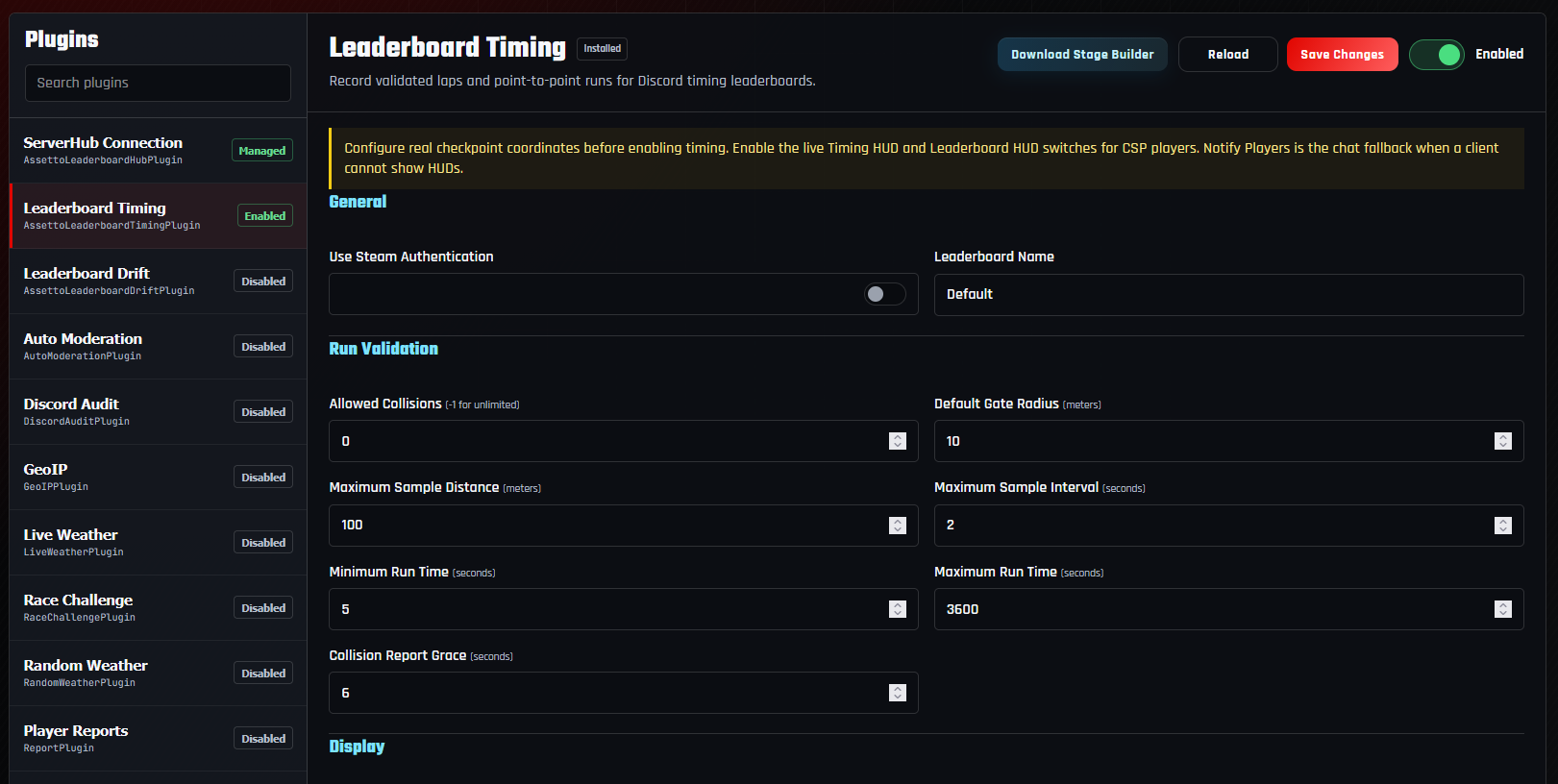
- Leaderboard Name: use a short community-facing name that is easy to recognize in Discord.
- Allowed Collisions: set how many environment contacts a run may have; use -1 only when collisions should be unlimited.
- Default Gate Radius: start with a radius that covers the track width without reaching nearby shortcuts.
- Maximum Sample Distance and Interval: reject suspicious jumps or long telemetry gaps.
- Minimum and Maximum Run Time: exclude impossible results and abandoned attempts.
- Collision Report Grace: allow delayed collision reports to invalidate the correct finished run.
If a legitimate run is rejected, change one validation limit and retest. Broadly disabling validation makes shortcut and teleport results harder to detect.
Enable the live timer and leaderboard HUDs
The live Timing HUD shows elapsed time and checkpoint feedback. The Leaderboard HUD shows the persistent server board. Keep Notify Players enabled as the chat fallback for a driver whose client cannot display the CSP HUD.
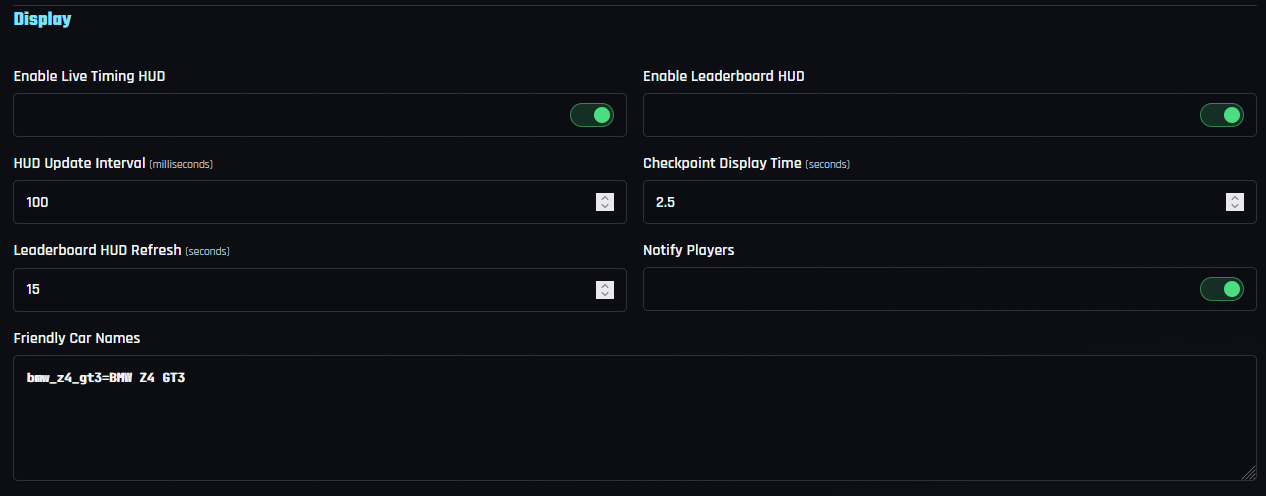
- Leave the default HUD update interval unless testing shows a clear reason to change it.
- Checkpoint Display Time controls how long split information remains visible after a timing line.
- Leaderboard HUD Refresh controls how often the persistent board requests updated results.
- Friendly Car Names replace internal car-folder names with cleaner labels for drivers and Discord.
Drivers can use Ctrl+Shift+T for the live Timing HUD, Ctrl+Shift+B for the leaderboard, and Shift+N to move or lock the panels.
Download and install the Timing Stage Builder
The Timing Stage Builder download page provides the in-game app and its complete control reference. It captures the car’s live position and facing direction, so you do not have to type track coordinates by hand.
- 1Open the Stage Builder page.
Select Download Stage Builder to get the ZIP package.
- 2Install it with Content Manager.
Drag the downloaded ZIP into Content Manager and choose Install.
- 3Enable Custom Shaders Patch.
The builder uses CSP to read the live car position and display its in-game window.
- 4Load the correct track and layout.
Start a session using the same track and layout configured on the server.
- 5Open Stage Builder.
Select it from Assetto Corsa’s right-side app bar and confirm the displayed track/layout.
Coordinates captured on another layout may be misplaced or unreachable even when both layouts belong to the same track package.
Capture the start, checkpoints, and finish in order
Enter the stage name, choose whether it is a closed loop, and set a gate radius. At every timing line, park on the intended point while the car faces the permitted driving direction. The captured forward point prevents a driver from triggering the line in reverse.
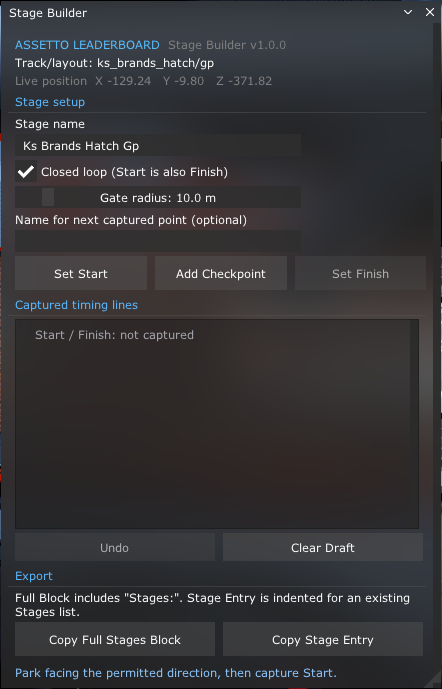
- 1Set the start.
Park on the start line, face forward along the route, and press Set Start.
- 2Add anti-shortcut checkpoints.
Drive the full route and capture each required crossing in the exact order drivers must follow.
- 3Set the finish for an open stage.
Closed loops reuse the start as the finish; point-to-point routes need a separate final line.
- 4Review Captured timing lines.
Use Undo for the last bad point or Clear Draft when the route needs to be rebuilt.
- 5Copy the correct export.
Use Copy Full Stages Block for the first stage, or Copy Stage Entry when adding another stage to an existing list.
Add enough checkpoints to prevent obvious cuts, but avoid stacking several gates so closely that normal telemetry sampling can miss one.
Paste the generated YAML into Stages and Checkpoints
Return to the Timing plugin and scroll to Stages. Paste the exported YAML into Stages and Checkpoints. Keep YAML spacing intact and make sure a new stage entry sits under the existing Stages: list rather than creating a second list.
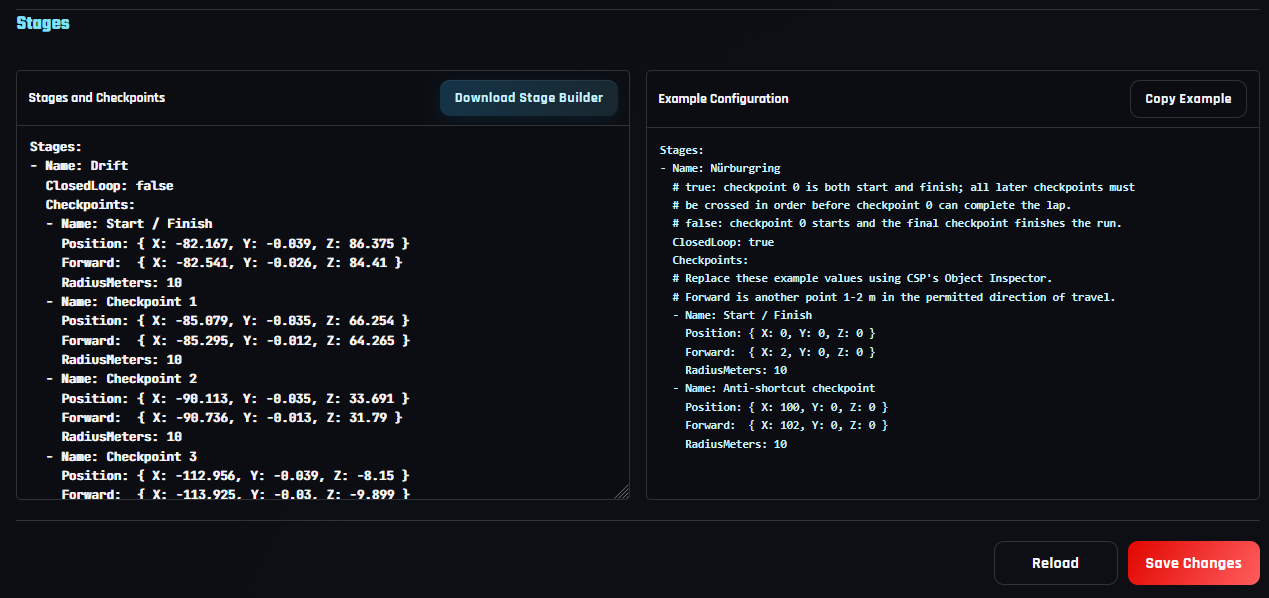
- Every stage needs a unique, recognizable Name.
- ClosedLoop must match the route type selected in Stage Builder.
- Each checkpoint needs its Position, Forward point, and RadiusMeters.
- Checkpoint order in YAML is the order required during a valid run.
- Use one Stages list containing all stage entries.
Save the last working stage YAML somewhere private before overwriting it. This makes it easy to restore the route if a new capture fails testing.
Save, restart, and complete one fully valid run
- 1Enable Leaderboard Timing.
Confirm the top-right switch reports Enabled.
- 2Press Save Changes.
Wait for the panel to validate the YAML and confirm the update.
- 3Allow the server restart.
Wait until the Assetto Corsa server returns to Online and ServerHub receives a new heartbeat.
- 4Join with the test car.
Open the Timing HUD and drive through every configured line in order.
- 5Finish without invalidating the run.
Stay inside the collision, time, sampling, and route rules configured in Step 2.
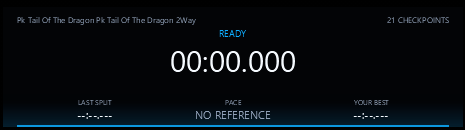
The intended direction should trigger each line. A reverse crossing should not. If both directions trigger, recapture that point while facing squarely along the route.
Verify the result in game and Discord
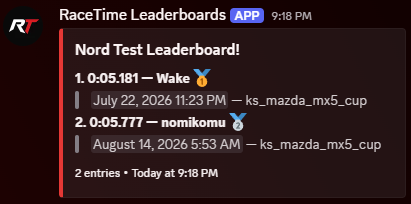
Once ServerHub accepts the valid result, check the in-game Leaderboard HUD and the timing leaderboard in Discord. Select the intended leaderboard, track, stage, and car view. The stage name and Leaderboard Name must match what was saved in the plugin.
| Problem | Likely cause | What to check |
|---|---|---|
| Timer never starts | The start point, radius, layout, or direction is wrong. | Load the exact layout and recapture the start while facing the route. |
| Run stops at a checkpoint | A checkpoint was missed or captured out of order. | Compare the route with the YAML order and increase only that gate’s radius if appropriate. |
| Finish does not complete the lap | A closed-loop checkpoint was not crossed, or an open route lacks a valid finish. | Review every line in Captured timing lines and rebuild the missing point. |
| Run finishes but is rejected | A collision, time, teleport, or sampling rule invalidated it. | Run one clean test and change only the validation limit proven to be too strict. |
| HUD is missing | The client lacks compatible CSP, the HUD is hidden, or its switch is off. | Enable the HUD setting and use the player HUD controls to show or reset it. |
| Discord board is empty | No valid result reached the connected ServerHub board. | Confirm the heartbeat, Leaderboard Name, stage identity, and successful test result. |
Assetto Corsa timing leaderboard questions
What is the Assetto Corsa Timing Stage Builder?
It is an in-game CSP app that captures the car’s position and facing direction for a start, ordered checkpoints, and finish, then exports YAML formatted for the Leaderboard Timing plugin.
Should I use Copy Full Stages Block or Copy Stage Entry?
Use Copy Full Stages Block when the plugin has no real stages yet. Use Copy Stage Entry when adding another route beneath an existing Stages list.
What is the difference between a closed loop and an open stage?
A closed loop starts and finishes at the first gate after every later checkpoint is crossed. An open stage starts at the first gate and ends at a separate final gate.
How many checkpoints should I add?
Add enough ordered checkpoints to prevent meaningful shortcuts and prove the intended route was followed. Avoid unnecessary gates that are too close together or outside the normal driving line.
Why does a checkpoint need a Forward point?
The Forward point records the permitted travel direction. This helps prevent the same timing line from triggering when crossed backward.
Can one Timing plugin contain several stages?
Yes. Keep every stage entry under one Stages list and give each stage a unique name. Use Copy Stage Entry when adding routes to an existing configuration.
Do drivers need to install a separate timing HUD?
No separate HUD app is required. Compatible CSP clients receive the plugin’s live timer and leaderboard panels; Notify Players can provide a chat fallback.
Can I award Discord roles for leaderboard positions?
Yes. After valid Timing stages appear in ServerHub, the bot panel’s Timing Role Mappings can associate selected leaderboard positions with Discord roles.
Capture the route accurately
Build your first Timing stage in Assetto Corsa
Download Stage Builder, record the real timing lines, and turn one clean test run into an in-game and Discord leaderboard.