
The quick answer
How do you install plugins on an Assetto Corsa server?
Discord Bot Plan required: You must purchase and activate the Assetto Corsa Discord Bot Plan before you can connect ServerHub and use the managed Plugin Manager.
In your hosted Discord bot panel, open Assetto Servers and connect the game server to ServerHub. Press Manage Plugins, choose a plugin, and check its status. For a managed Timing or Drift package marked Ready to Install, configure the required fields and press Install. For an included AssettoServer plugin, adjust its settings, turn on Enabled, and press Save Changes. The panel restarts a running server when the plugin files or configuration change.
The ServerHub Connection plugin is managed automatically when you connect the game server. Do not replace its credentials or attempt to configure that connection by hand.
Choose the plugin for the job
The Plugin Manager displays both first-party managed packages and plugins included with AssettoServer. Their installation paths are slightly different, so decide what the server needs before changing its configuration.
ServerHub ConnectionThe managed bridge that supplies server presence and authenticated plugin data to ServerHub.
Leaderboard TimingRecords circuit laps and point-to-point stages for in-game and Discord timing boards.
Leaderboard DriftScores and validates drift runs, shows a CSP HUD, and publishes rankings in Discord.
Included pluginsConfigure features such as Auto Moderation, Discord Audit, GeoIP, Live Weather, and Race Challenge.
Install and test one plugin before enabling another. If the server behaves differently, you will know which change caused it.
Connect ServerHub and open Manage Plugins
Plugin management is available after the Assetto Corsa server is connected to the hosted Discord bot. If that connection is not ready yet, complete the Assetto Corsa Discord bot setup guide through the ServerHub connection step.
- 1Open the hosted bot.
Select your Discord bot from the Assetto Servers dashboard.
- 2Select Assetto Servers.
This tab lists game servers owned by the same account.
- 3Confirm the connection.
The intended server should show Connected and a recent ServerHub heartbeat.
- 4Press Manage Plugins.
Open the Plugin Manager for that specific Assetto Corsa server.
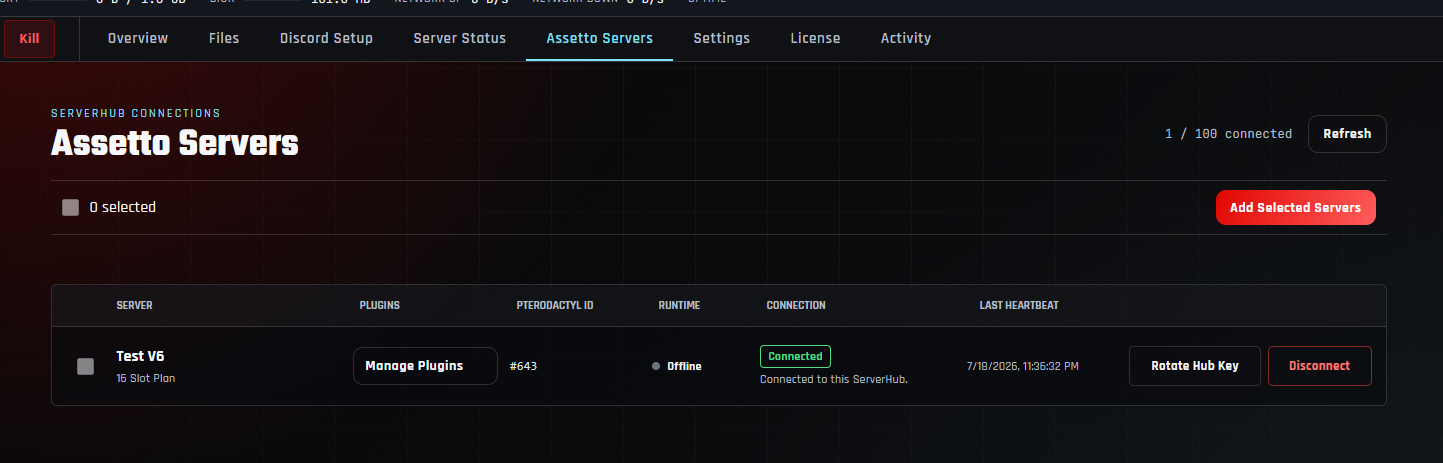
When your account has several servers, verify the server name and Pterodactyl ID before installing anything.
Select the plugin and read its current status
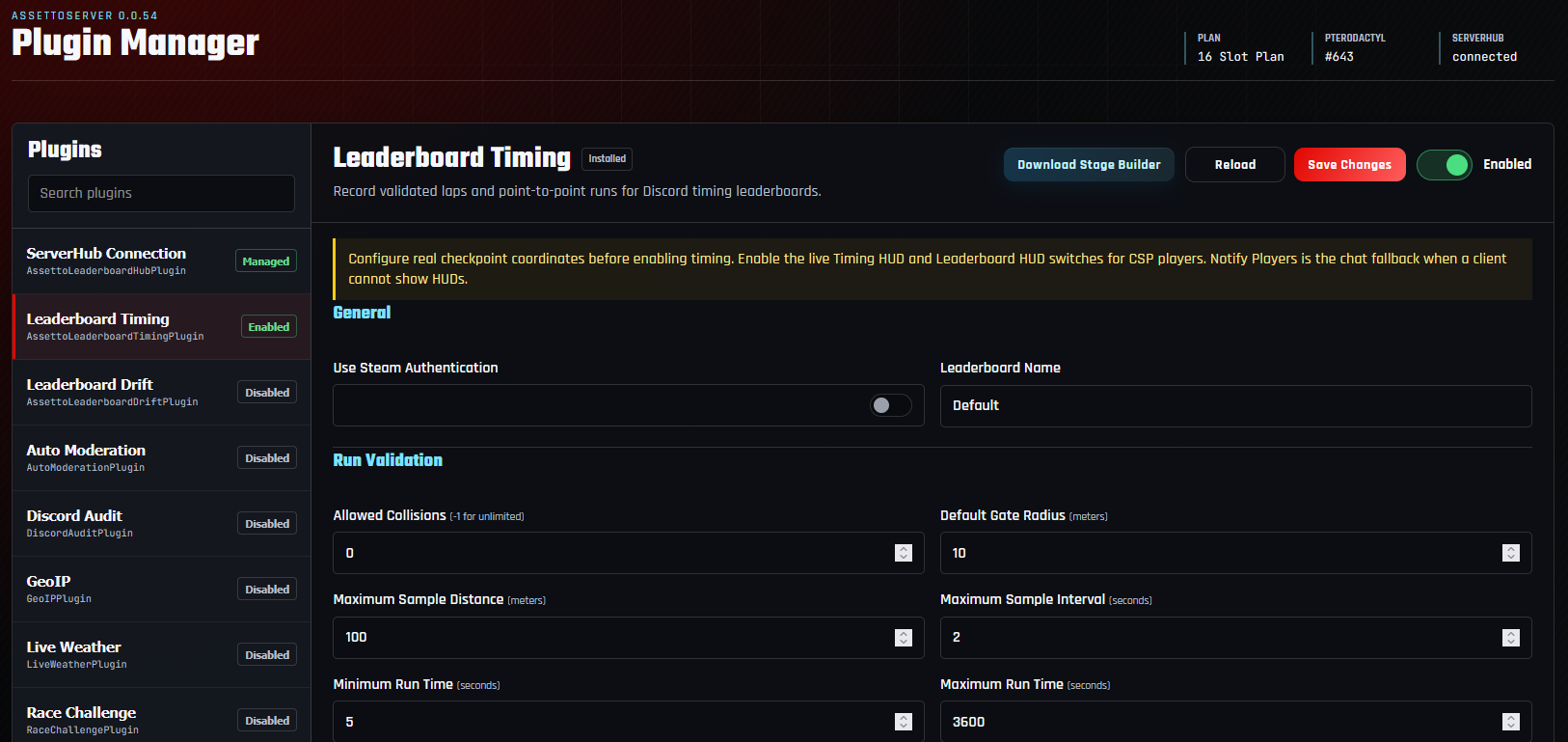
Use the plugin list or search box on the left. The editor on the right changes to the selected plugin and shows whether it is managed, ready to install, installed, enabled, disabled, or waiting for an update.
| Status | Meaning | Next action |
|---|---|---|
| Website Managed | Assetto Servers controls this connection plugin. | Leave its connection values unchanged. |
| Ready to Install | A trusted managed package is available but is not on the game server yet. | Review its required configuration, then press Install. |
| Installed / Disabled | The files exist, but the plugin is not active. | Configure it, turn on Enabled, and save. |
| Installed / Enabled | The plugin is active in the current configuration. | Test its behavior before making more changes. |
| Update Available | A newer managed package has been published. | Read the update note and install it during a quiet period. |
Install a managed Timing or Drift package
First-party Leaderboard Timing and Leaderboard Drift packages can be copied from the hosted bot to a connected game server. Select the plugin marked Ready to Install, review the warning and defaults, then press Install.
- 1Select Leaderboard Timing or Leaderboard Drift.
The plugin must show Ready to Install and ServerHub must be connected.
- 2Complete required fields.
Use a clear leaderboard name and provide any required stage, checkpoint, or validation settings.
- 3Press Install.
The panel copies the managed package, adds its configuration, and enables it when all required settings are valid.
- 4Wait for the result message.
If the game server was running, allow its automatic restart to finish before testing.
Do not run a public timing competition with example coordinates. Capture the actual start, checkpoint, and finish positions with the Timing Stage Builder, then save them to the plugin.
Configure the plugin before opening the server
Settings are grouped by purpose so you can review the effect of each feature before saving.
- General: choose names, authentication behavior, and the plugin’s main operating mode.
- Validation: set limits for collisions, speed, angle, duration, samples, and rejected runs.
- Display: enable supported CSP HUDs, chat fallbacks, refresh intervals, and friendly car names.
- Stages or Zones: define the exact track areas where timing or drift scoring should operate.
- Webhooks and secrets: save sensitive values in their dedicated fields and never include them in screenshots.
Reload discards unsaved edits and rereads the active configuration. Use Save Changes when you want the new values applied.
Enable the plugin, save, and let the server restart
For a plugin already included with AssettoServer, select it, configure the required values, turn on the Enabled switch, and press Save Changes. Managed Timing and Drift installations are enabled during installation when their required configuration is complete.
- 1Review every changed field.
Correct validation errors before continuing.
- 2Turn on Enabled.
The label should change from Disabled to Enabled.
- 3Press Save Changes.
Wait for the confirmation message rather than navigating away immediately.
- 4Allow the restart to complete.
When the server was online, plugin changes normally trigger an automatic restart.
Saving plugin changes can restart an active server. Make changes between sessions or announce the restart before applying them.
Verify the plugin in the panel, game, and Discord
Do not treat an Enabled badge as the final test. Confirm that the server restarted cleanly and the plugin performs its actual job.
Test with one driver and one known event before inviting the full community. Timing and Drift should be tested on the exact track and layout used in their configuration.
Install managed updates without losing configuration
When the Hub, Timing, or Drift package has a newer trusted release, the Plugin Manager displays an update control. Use Update Plugin for one package or Update All when several managed updates are ready. Existing plugin configuration, stages, zones, and leaderboard data are preserved while package files are replaced.
- 1Choose a maintenance window.
A running Assetto server restarts after updated package files are installed.
- 2Read the version and release note.
Confirm which package will change before approving the update.
- 3Install the update.
Keep the page open until the completion message appears.
- 4Repeat the Step 7 test.
Verify the server, ServerHub heartbeat, and plugin output after every update.
Avoid overwriting managed Timing, Drift, or Hub files with a different manual build. Let Plugin Manager maintain those packages so versions and update checks remain consistent.
Assetto Corsa server plugin questions
Do I need a Discord bot to use the managed plugin installer?
Yes. The hosted bot provides the ServerHub connection and the trusted package source used to install and update the managed Hub, Timing, and Drift plugins on connected Assetto Corsa servers.
Why does ServerHub Connection say Website Managed?
Assetto Servers generated and synchronized its authenticated connection values when the game server was connected. Keeping that plugin managed prevents the bot and game server credentials from drifting apart.
Why does a plugin say Ready to Install?
The package is available from the connected hosted bot but has not been copied to that game server. Select it, complete any required configuration, and press Install.
Why was the plugin installed but left disabled?
A required setting was incomplete or invalid. Correct the field identified by the panel, enable the plugin, and save again.
Will saving plugin settings restart the server?
If the plugin configuration or files changed while the server was running, the panel normally restarts it automatically so the new configuration can load.
Do managed updates erase stages, zones, or leaderboard data?
No. Managed updates replace the package files while preserving the existing connection settings, plugin configuration, stages, zones, and leaderboard data.
Can I enable multiple plugins?
Yes, but install and test them one at a time. This makes performance, configuration, and compatibility problems much easier to isolate.
Build the server you want
Add managed features without moving plugin files
Connect ServerHub, install the right package, and keep every plugin configured and updated from one place.