
The quick answer
How do you show an Assetto Corsa server’s status in Discord?
Discord Bot Plan required: You must purchase and activate the Assetto Corsa Discord Bot Plan before you can create or run hosted server-status commands.
Set up the Assetto Corsa Discord bot and connect the game server through ServerHub. Open the bot panel’s Server Status tab, press Add Status, choose the Assetto server from your account, and review the generated command name, address, server ID, and Content Manager Join URL. Choose a title and color, set the update interval, then press Save Server Status. After the bot restarts, run the configured slash command in Discord to receive the live status embed.
Choose the Assetto server from your account whenever possible. The panel automatically fills the correct live address, ServerHub identity, and Content Manager Join URL.
Prepare the Discord bot and Assetto server
The status command runs through the hosted bot while live game data comes through ServerHub. If the bot is not online yet, complete the Assetto Corsa Discord bot setup guide before continuing. The game lobby should also be provisioned and able to start.
Bot token and Guild IDDiscord Setup should be saved for the community where the command will run.
Bot installed in DiscordThe app needs the bot and applications.commands scopes.
Channel permissionsAllow View Channel, Send Messages, Embed Links, and Read Message History.
Assetto server readyThe intended lobby should appear under the same Assetto Servers account.
Use a staff or setup channel until the title, color, command name, and Join button all look correct.
Confirm the game server is connected to ServerHub
Open the bot panel and select Assetto Servers. The game server should report Connected with a recent heartbeat. If it is only Available, select it and press Add Selected Servers. If it reports Error, use Retry Setup before building the status command.
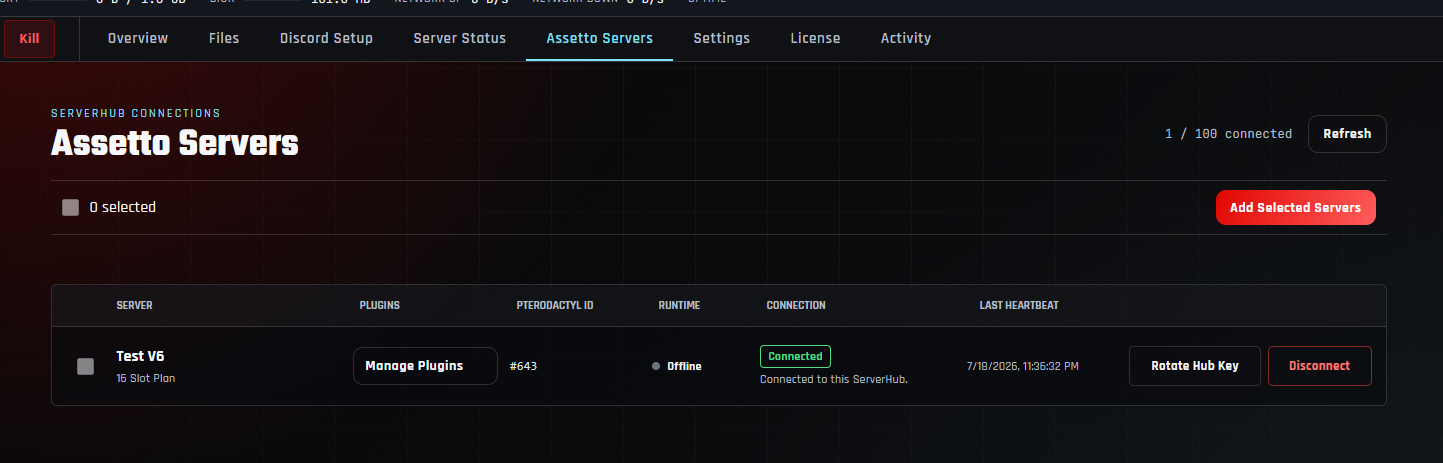
A saved command cannot display current game data when the Hub plugin is disconnected. Repair the connection first.
Open Server Status and add the command
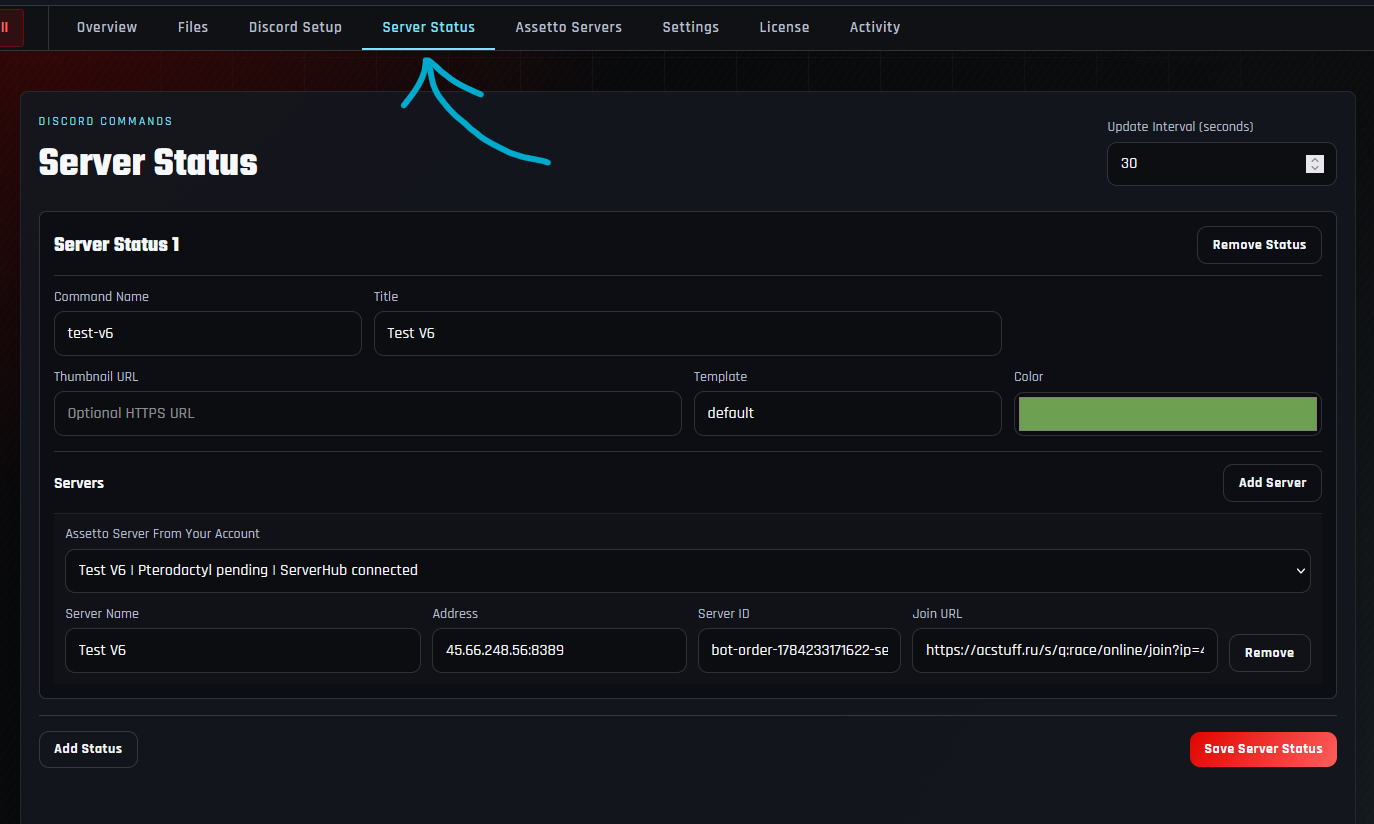
- 1Select Server Status.
Open the Server Status tab from the hosted bot navigation.
- 2Press Add Status.
A new Server Status card appears with command, appearance, and server fields.
- 3Select Assetto Server From Your Account.
Choose the connected game server; the panel fills its current connection details.
- 4Review the generated values.
Make sure the selected server name matches the lobby you intend to advertise.
Choose one command per server or one shared command
The structure depends on how many lobbies your community operates.
One command per serverUse Add Status for each lobby and give every entry a distinct command such as test-v6 or drift-server.
One shared commandName the status server-status, then use Add Server inside that card to place several lobbies behind one command.
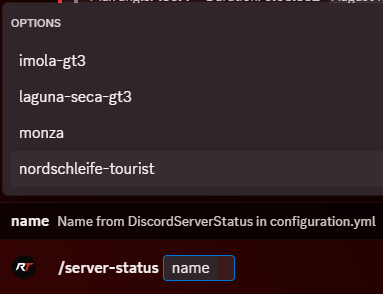
Discord autocompleteA shared command lets drivers choose the server by name from the command’s options.
Unique command namesUse lowercase letters, numbers, and hyphens, and do not reuse a command name in another status card.
Use one /server-status command and put each lobby under Add Server. Drivers get one predictable command plus a searchable server-name choice.
Review the embed and connection fields
| Field | What it controls | Recommended setup |
|---|---|---|
| Command Name | The Discord slash command registered by the bot. | Use a short lowercase slug such as server-status or test-v6. |
| Title | The heading shown on the status response. | Use the public community or lobby name. |
| Thumbnail URL | An optional image displayed with the embed. | Use a stable public HTTPS image or leave it blank. |
| Template | The status response layout. | Keep default unless another supported template is available. |
| Color | The accent color used on the Discord response. | Choose a readable community or server color. |
| Server Name | The lobby label shown to drivers and in autocomplete. | Keep each name distinct when one command contains several servers. |
| Address | The Assetto server address queried for live status. | Use the automatically selected host and HTTP port. |
| Server ID | The connected ServerHub server identity. | Keep the generated ID so the command uses the correct Hub data. |
| Join URL | The target opened by the Discord Join button. | Use the generated HTTPS Content Manager join URL. |
If the host, HTTP port, or Join URL is wrong, the embed may show stale or offline information and the Join button may open the wrong lobby.
Choose the update interval and save Server Status
The update interval controls how often configured status messages are refreshed. The default 30 seconds is a practical starting point: it keeps player counts and session details current without refreshing unnecessarily often.
- 1Set Update Interval.
Begin at 30 seconds and adjust only when the community has a clear need.
- 2Review every Status card.
Each command name must be unique and each card needs at least one valid server.
- 3Press Save Server Status.
Wait for the panel to confirm that the ServerHub configuration was saved.
- 4Allow the bot to restart.
A running bot restarts so Discord commands and status workers can load the new configuration.
- 5Wait for the bot to return online.
Do not test the command while the restart is still in progress.
Remove Status only changes the editor until Save Server Status is pressed. Saving and restarting removes the old command from the active configuration.
Run the command in Discord
Open a channel where the bot can respond and type / followed by the configured command name. When a shared command contains several servers, choose the lobby from the name autocomplete options, then submit the command.
Confirm the app was installed with applications.commands, wait for the bot restart to finish, and make sure the Server Status configuration saved without an error.
Verify live data and the Content Manager Join button
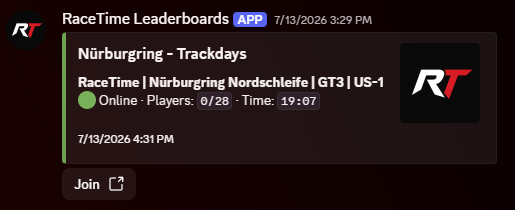
Test the response once while the game server is online and again after it is stopped. This proves the command is reading current data rather than displaying one successful cached state.
| Problem | Likely cause | What to check |
|---|---|---|
| Command does not appear | Command scope is missing, the save failed, or Discord has not refreshed it yet. | Check applications.commands, bot state, and the Server Status save message. |
| Bot cannot respond | The channel overrides its role permissions. | Allow View Channel, Send Messages, Embed Links, and Read Message History. |
| Server always shows offline | The address or HTTP port is wrong, or ServerHub is disconnected. | Reselect the server from your account and confirm Connected plus a heartbeat. |
| Player count is stale | The update interval has not elapsed or live data stopped reaching ServerHub. | Wait one full interval, then inspect the Hub connection and game server. |
| Join opens the wrong lobby | The saved Join URL belongs to another server or old allocation. | Reselect the current account server and save the generated URL. |
| Wrong server is returned | Duplicate names or a mismatched command selection are confusing the entry. | Give every server and command a unique, recognizable name. |
Assetto Corsa Discord server-status questions
What can the Discord status response show?
It can show whether the Assetto Corsa server is online, the current player count, session information, and a direct Join action when the status entry has a valid Content Manager Join URL.
Should every server have a separate Discord command?
Not necessarily. Use separate commands when each lobby has a distinct audience. For several related servers, use one shared command such as server-status and add each lobby inside it so Discord can offer a name selector.
What does Add Status do compared with Add Server?
Add Status creates another Discord slash command and response design. Add Server places another lobby inside the current command, allowing one command to offer several server choices.
Do I have to enter the address and Join URL manually?
No. Selecting an eligible Assetto server from your account automatically fills its current address, ServerHub ID, and Content Manager Join URL. Manual fields are available for advanced cases.
Why does the bot need ServerHub?
ServerHub links the Discord bot with the Assetto Corsa game server and supplies the managed identity, heartbeat, and live data used by the status response.
Can I change the embed color and image?
Yes. Choose an accent color and provide an optional public HTTPS Thumbnail URL. Keep the default template unless another supported template is available.
How quickly does Discord status update?
The configured Update Interval controls refresh timing. Thirty seconds is the default and a sensible starting value for most communities.
Can a private server use Discord status?
Yes, but place the command in a private channel and do not expose the game password in the public status response. Follow the private Assetto Corsa server guide for access controls.
Keep drivers informed
Put live Assetto Corsa server status in Discord
Connect the lobby once, give it a clear command, and let your community check status and join without hunting for server details.